Workers management#
The personnel is listed in the section Workers. In SMASCH the personnel includes following roles: Doctor, Nurse, Project Manager, Psychologist, Technician and Secretary. The workers details are listed in the table, see image below. Here, you can quickly verify if the worker is currently available or on a leave (green/red mark in column At work). Also, the last column Disabled informs if the account has been disabled.
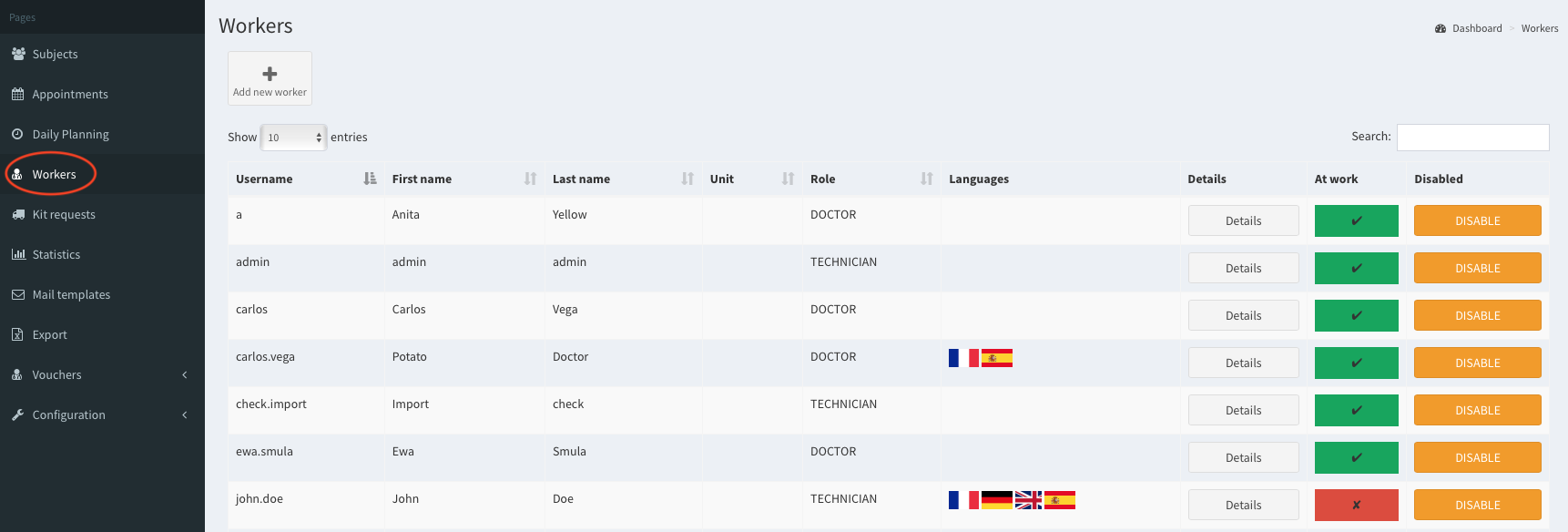 Workers - the main view
Add / edit worker#
This section describes adding a new worker and editing existing one. Click below to read how to:
Disable a worker#
Disabled worker cannot login to the system anymore. To set worker as disabled click on the orange button Disable in the last column in Workers section (see image below).
Important note: Only SMASCH superuser (administrator) can enable the disabled worker.
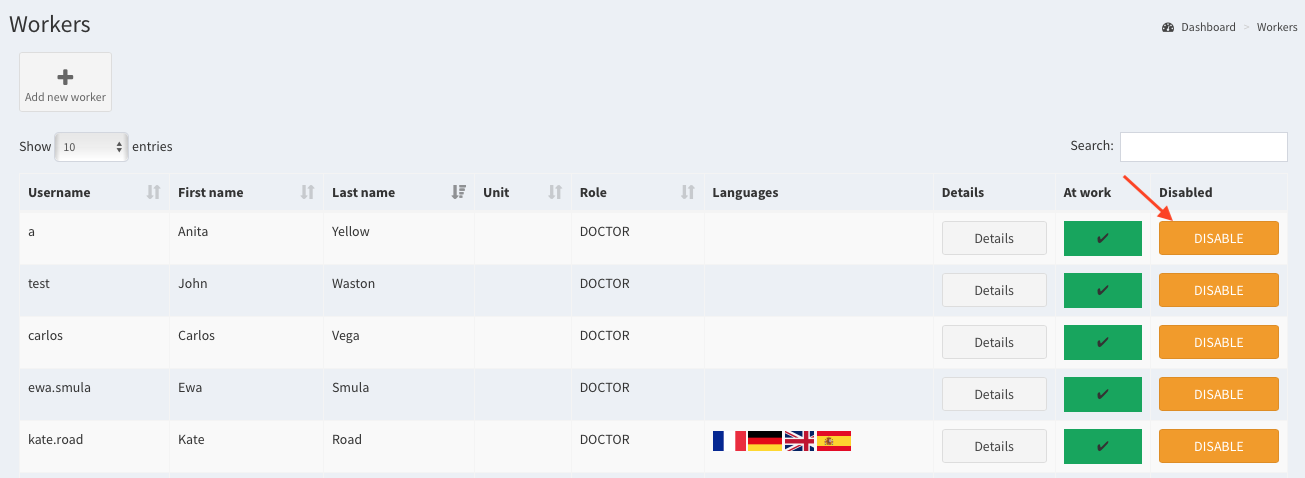 Click on ‘Disabled’ button
The button Disable has changed on inactive label YES (hover over it to see the mouse cursor shape). Also, there is new button Re-enable - click on it to make a worker active again.
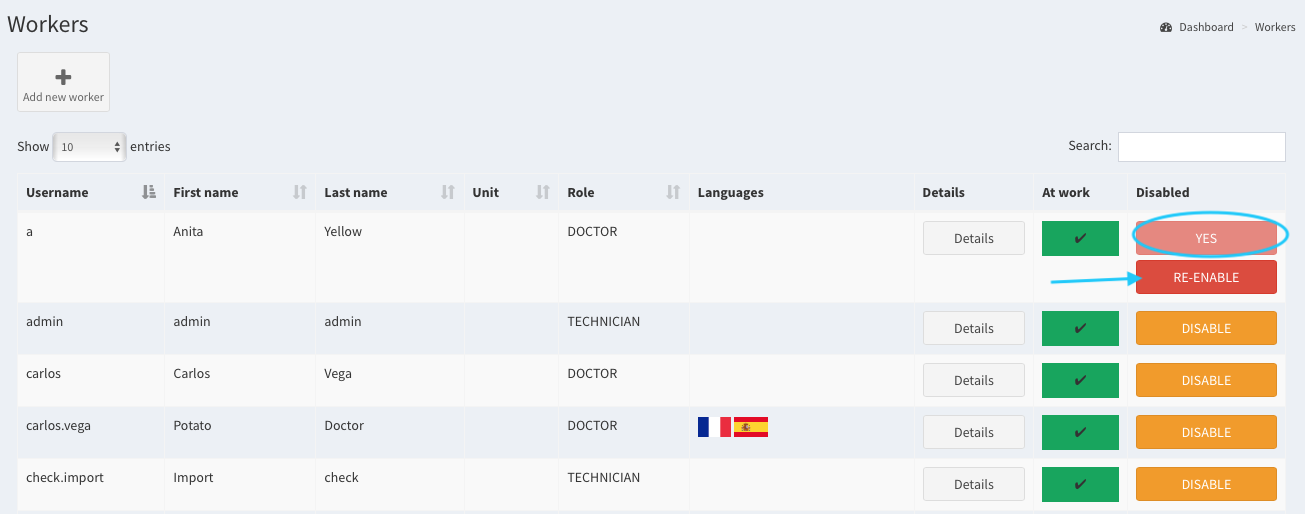 The worker is disabled
Access control#
Each worker might have different scope of privileges, e.g. can manage the subjects, the appointments, the workers. The access to particular permissions is granted during adding. Also, the user’s access can be changed later, during editing the worker details. The list of all available privileges is contained in Permissions section (see image below).
How to grant the workers with an access?#
- Go to Workers tab in the left menu. Click on Add new worker or the existing worker’s Details button.
- Scroll down to view the list of permissions and choose items from the list. To select more than one item, hold Shift key and simultaneously click on the items you wish to choose. Find more details about multiple selection here.
- Save your changes.
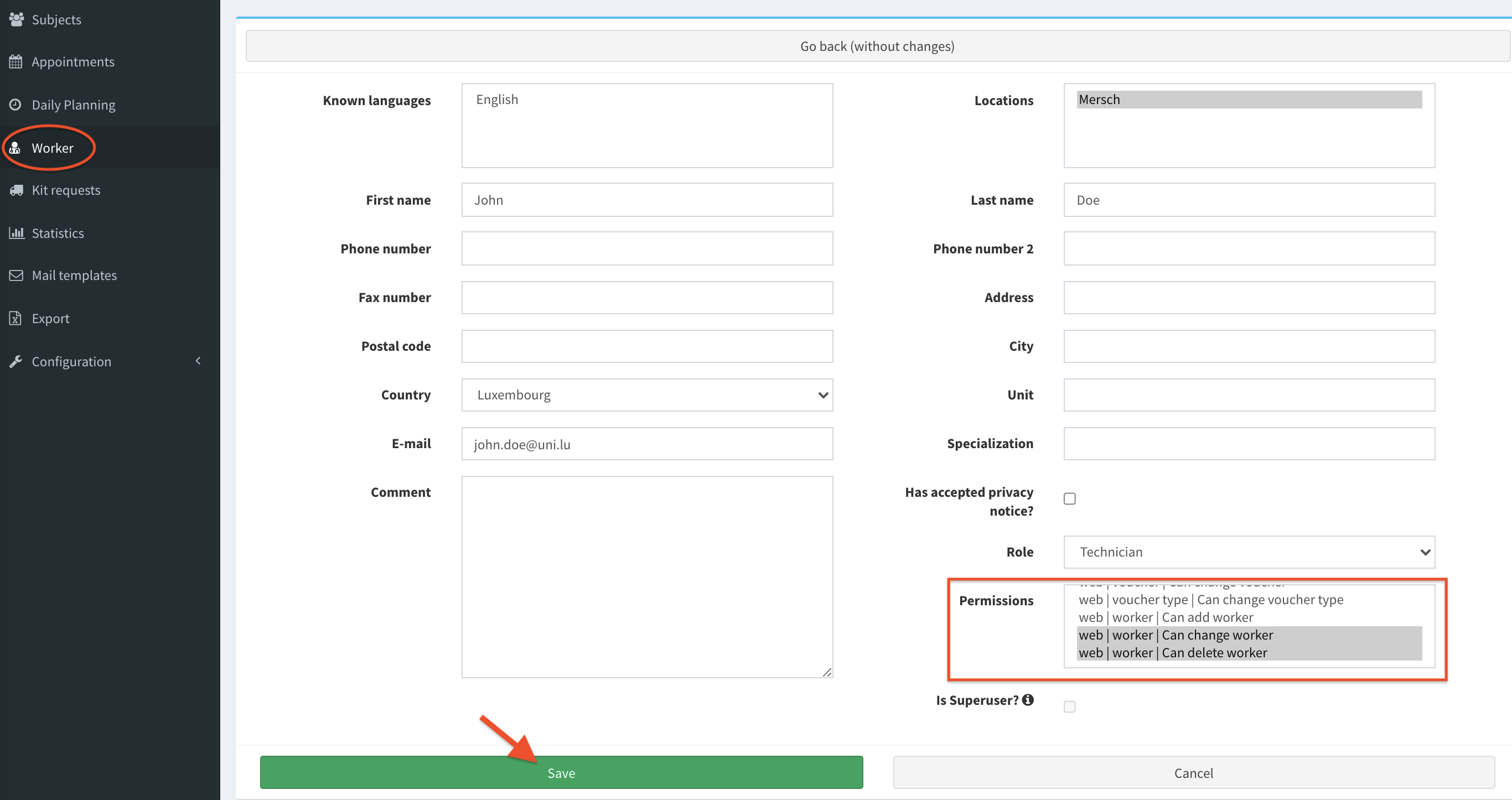 Workers permissions
Holidays / extra availabilities#
Holidays and workers extra availabilities are part of Daily Planning. Holidays are the period of time when a worker is not available for scheduling. Therefore, in Daily Planning view the worker’s calendar is marked with red color (the availability is marked green). Moreover, during the holiday worker’s initials are not displayed in Calendar View. The extra availabilities are periods, when worker is additionally available for scheduling (in Daily Planning view these are marked with green color).
Find out how to: