Daily Planning#
Daily Planning presents daily schedule of the appointments and to which workers the appointments are assigned. In Daily Planning more available workers are displayed on the left side of the table. Note: In Daily Planning you can see only appointments from the locations you are assigned to.
How to navigate#
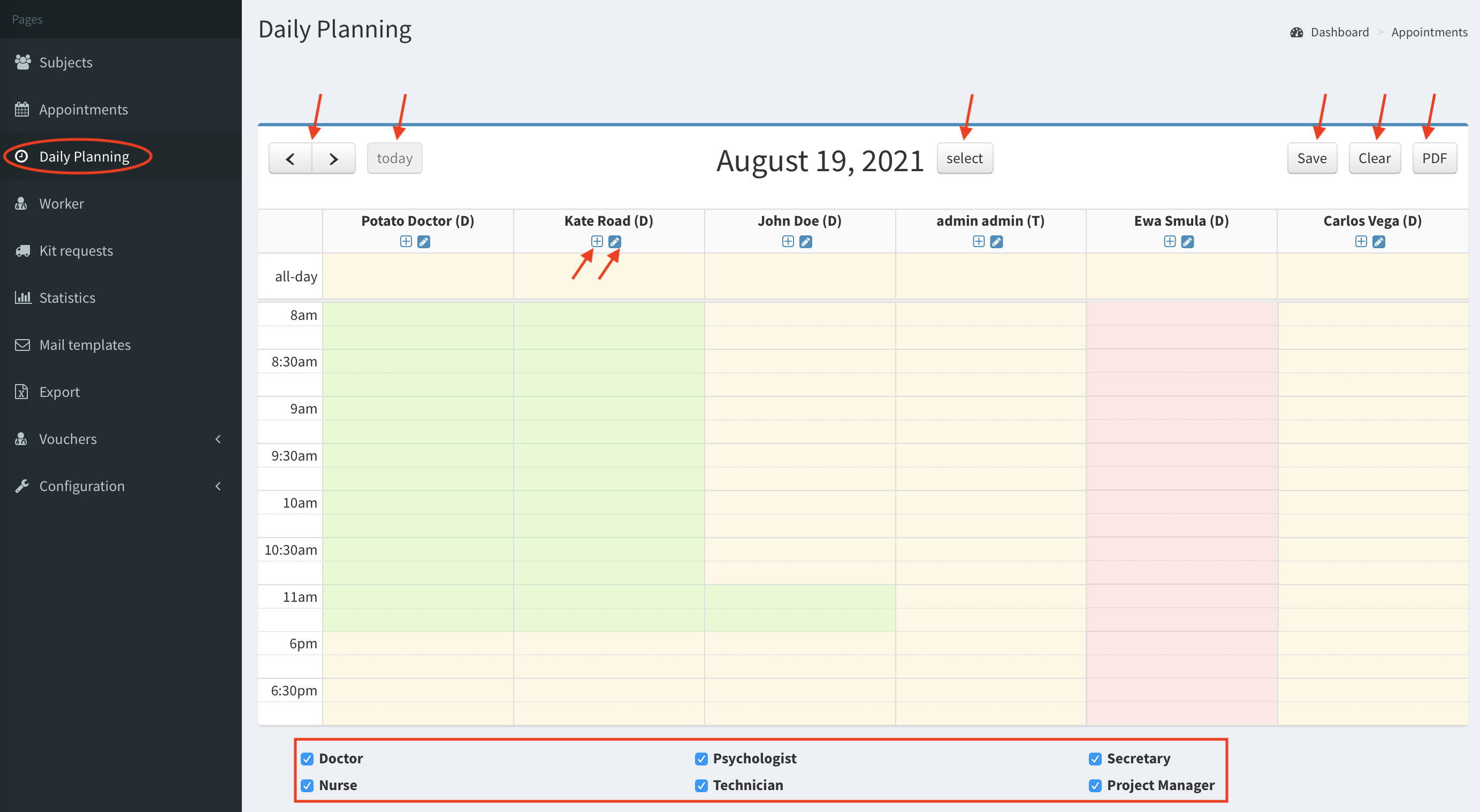
Description of the buttons at the top of Daily Planning (image above).
- < >: go to previous day / next day.
- today: click to go to current date. On the image the button is inactive, what mean you are displaying the current day.
- select: it opens a calendar, allows to choose a date.
- Save: after scheduling the appointments, you have to save your changes.
- Clear: removes all appointments from the Daily Planning. Click Save button to preserve that change.
- PDF: exports current Daily Planning to PDF.
- pencil: edit worker.
- plus: add extra availability or holidays.
Colors in Daily Planning#
The meaning of background colors:
- yellow: current day
- white: not current day
- green: worker is available
- pink: worker on holidays
Workers display#
In Daily Planning table header, next to the worker’s name, there is an abbreviation of worker’s role, given in the brackets (e.g. Kate Road (D) - for Doctor). The checkboxes below the table allow to customize which workers roles are displayed. Example: If you would like to display just the doctors, check Doctor checkbox only.
Scheduling appointments#
Available appointments are displayed above the table. Here you can see if the appointment is general (brown color) or for the subject. Moreover, the time next to subject’s name informs you after what time the appointment may be scheduled. In the color bar you see how much the time appointment should take. To edit appointment’s details click pencil icon.
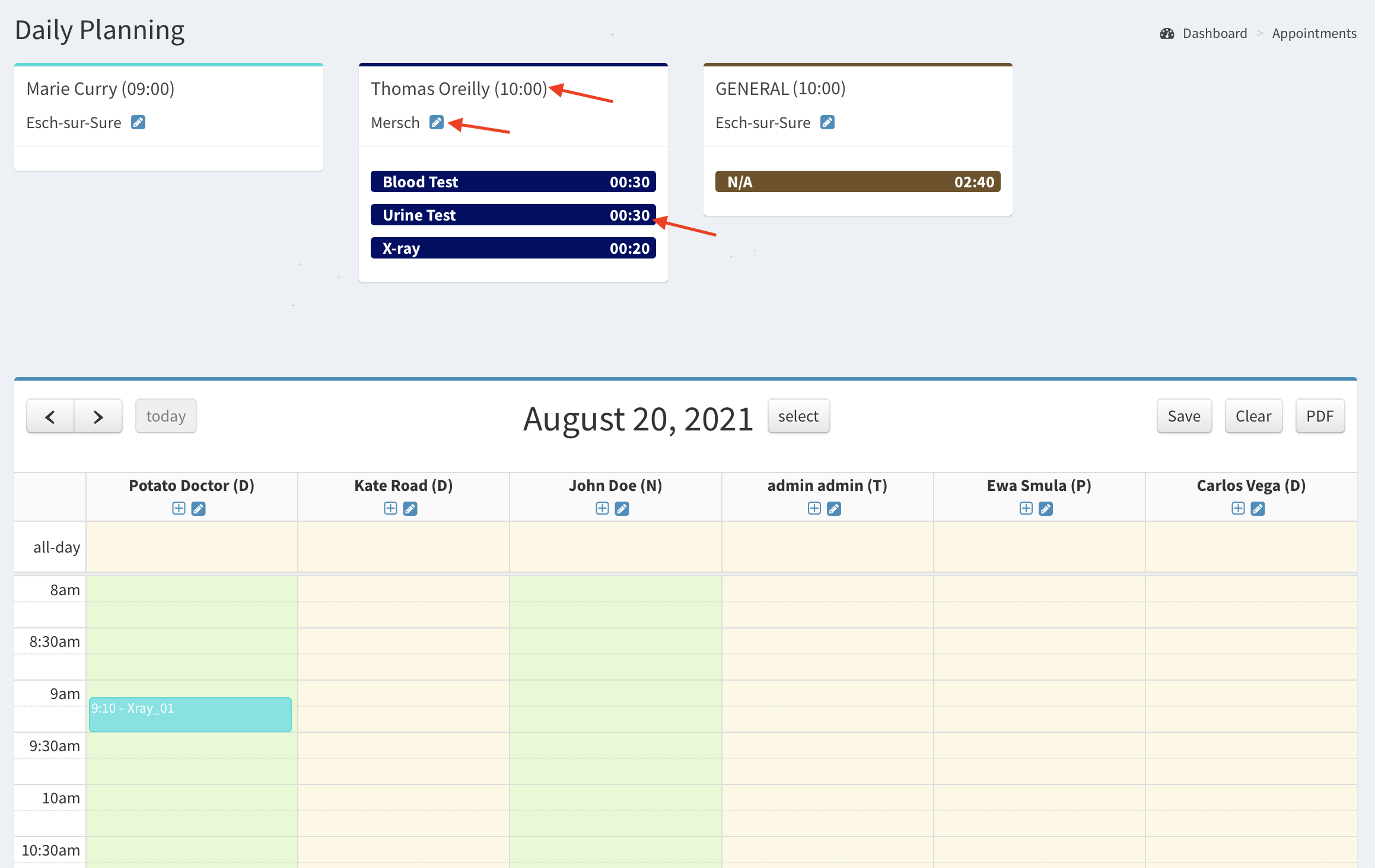
To schedule the appointment drag and drop the color bar from to the Daily Planning table (see videos below). You can drop the color bar after the time the appointment is scheduled, what is highlighted with light blue color. Click Save button to save the schedule.
Finished appointment is marked with black stripes on the color bar (image below).
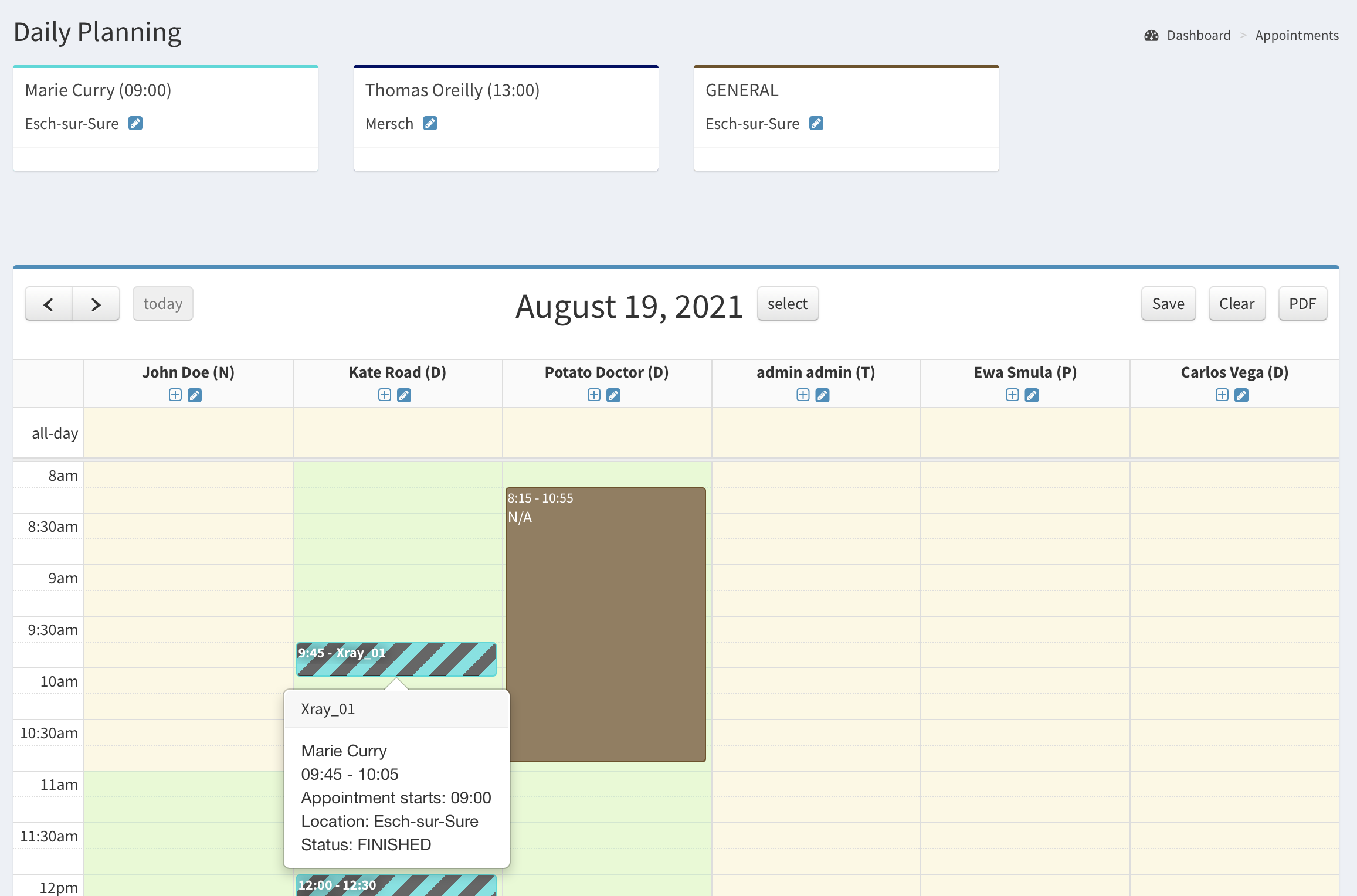
Click on the appointment bar displays its details. The second click on color bar hides the details (video below).
Helpful hints#
Hover over the icons to get more information about (see video):
- Hover over worker/subject name displays languages they speak.
- pencil icon: Edit worker/appointment.
- plus icon: Add extra availability or holidays.