Visit / Appointment management#
Calendar view of the appointments#
After successful login to SMASCH, you can see the main dashboard with the calendar view of the appointments. The calendar is displayed with the monthly view as default, and can be changed to weekly view with the buttons month/week in the top right corner of the screen. The calendar displays the appointments marked with colourful bars. The letters displayed in the particular days are the initials of workers who are available during the day. The current day is highlighted with light yellow colour. Below the calendar, there are two buttons - Add General appointment and Add Subject appointment. Also, at the very bottom of the page, the upcoming appointments are listed.
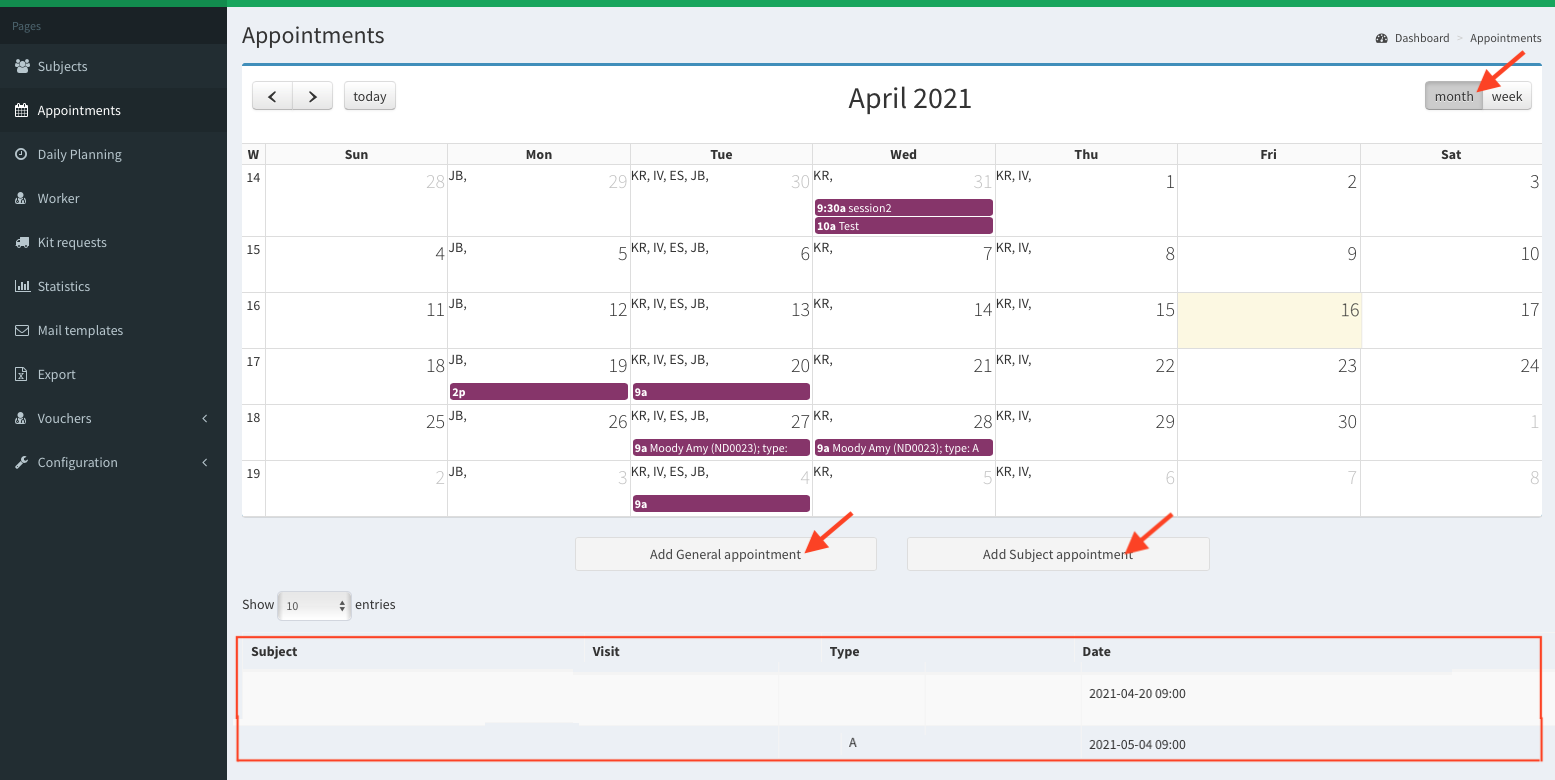
SMASCH Dashboard - the monthly view
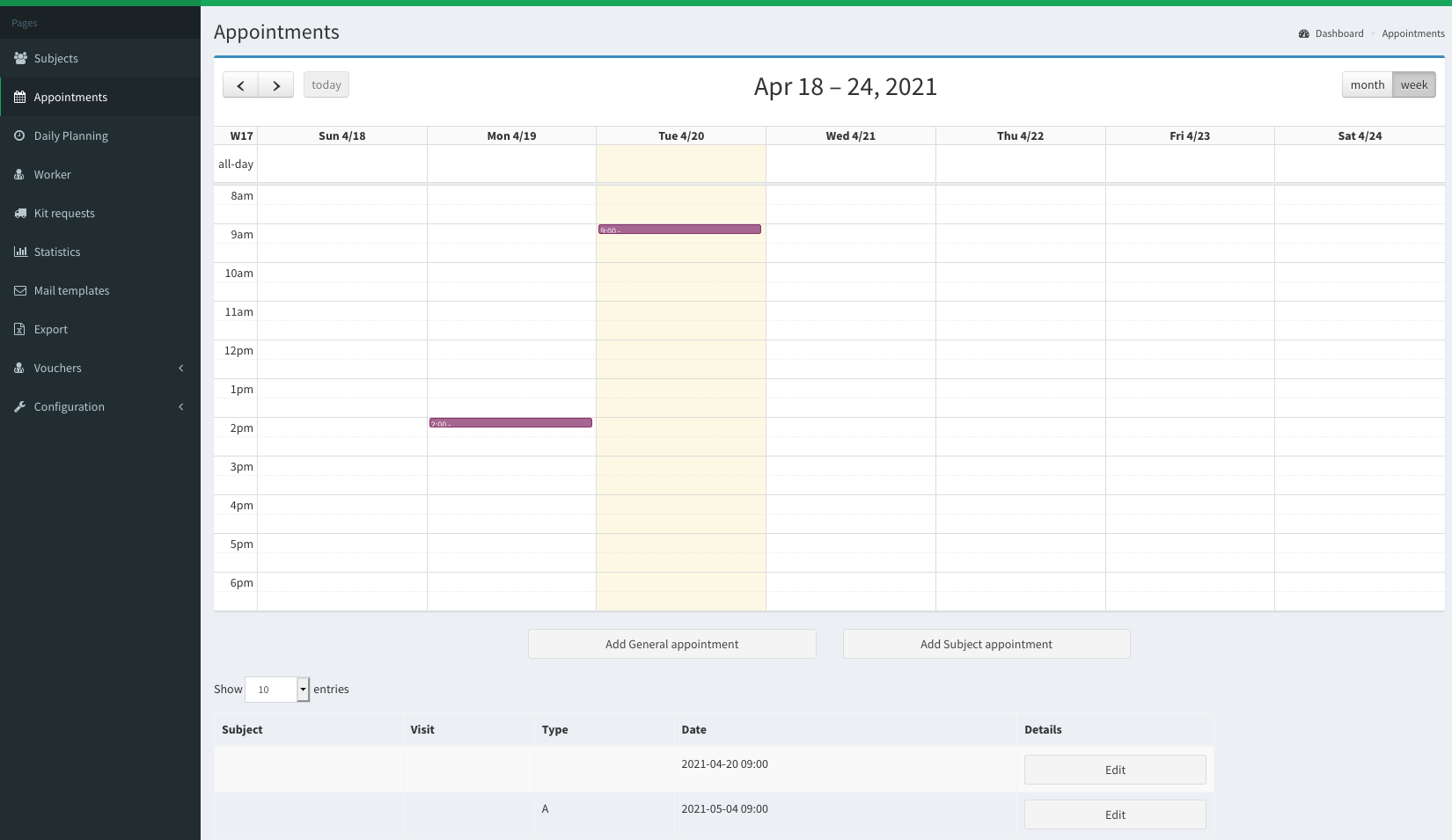 SMASCH Dashboard - the weekly view
What is appointment?#
In SMASCH the basic entities are the subjects and the appointments. An appointment is a day event displayed in the calendar view. Hover over the appointment in the calendar to see its details (image below).
The appointment can be:
- a general appointment - with no particular subject assigned. For example a general appointment can schedule a meeting for the clinical team (not patients related).
- an appointment in a visit - assigned to the particular subject’s visit. The assessments (e.g. blood test, examination) will be conducted during the appointment.
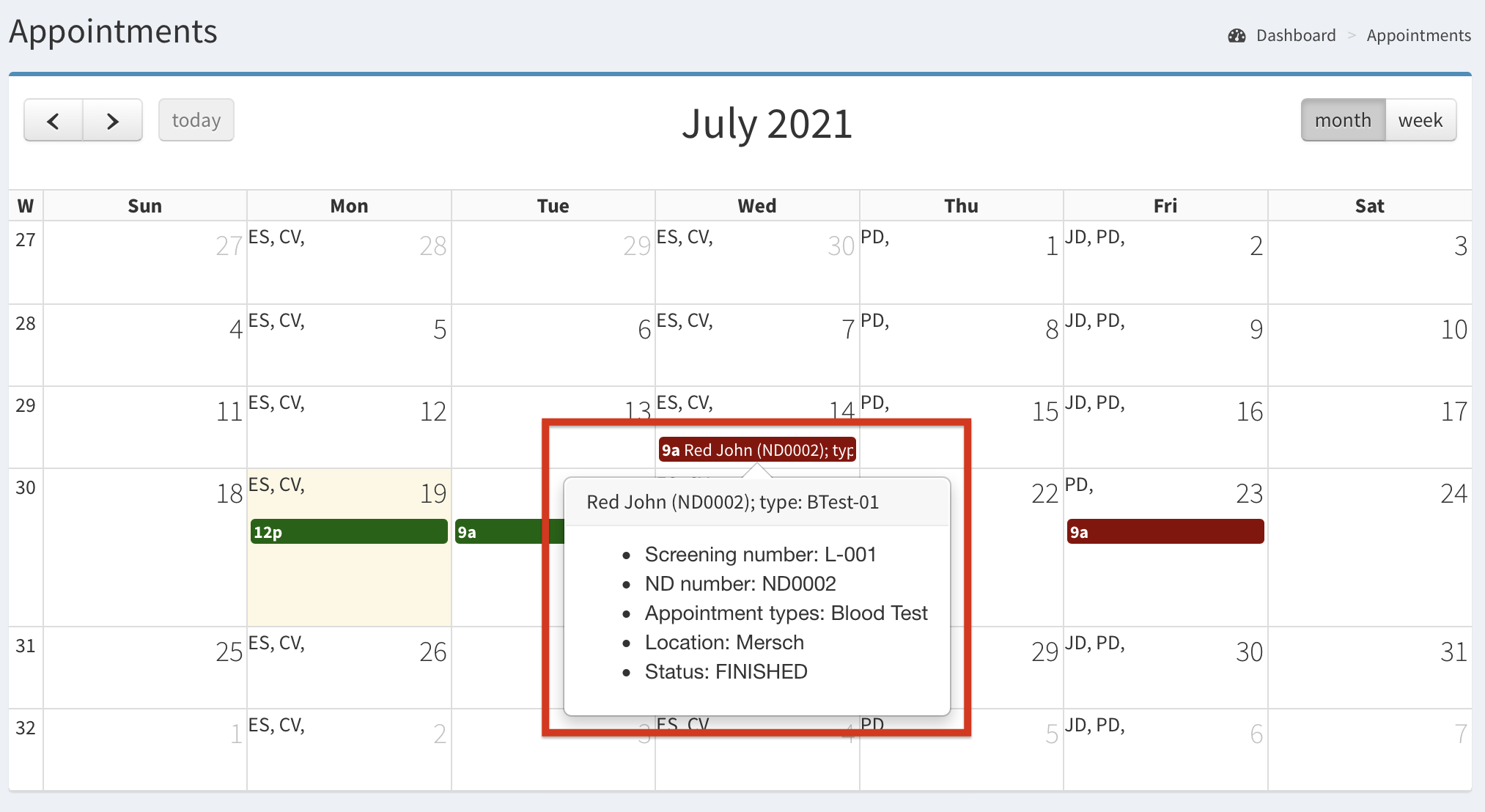 Appointment details
Appointment types#
Appointment types represent the different assessments (i.e. blood test) to be conducted during an appointment. While adding a new appointment you can choose its type. Moreover, you can configure your own types of appointment in SMASCH configuration of Appointment Types.
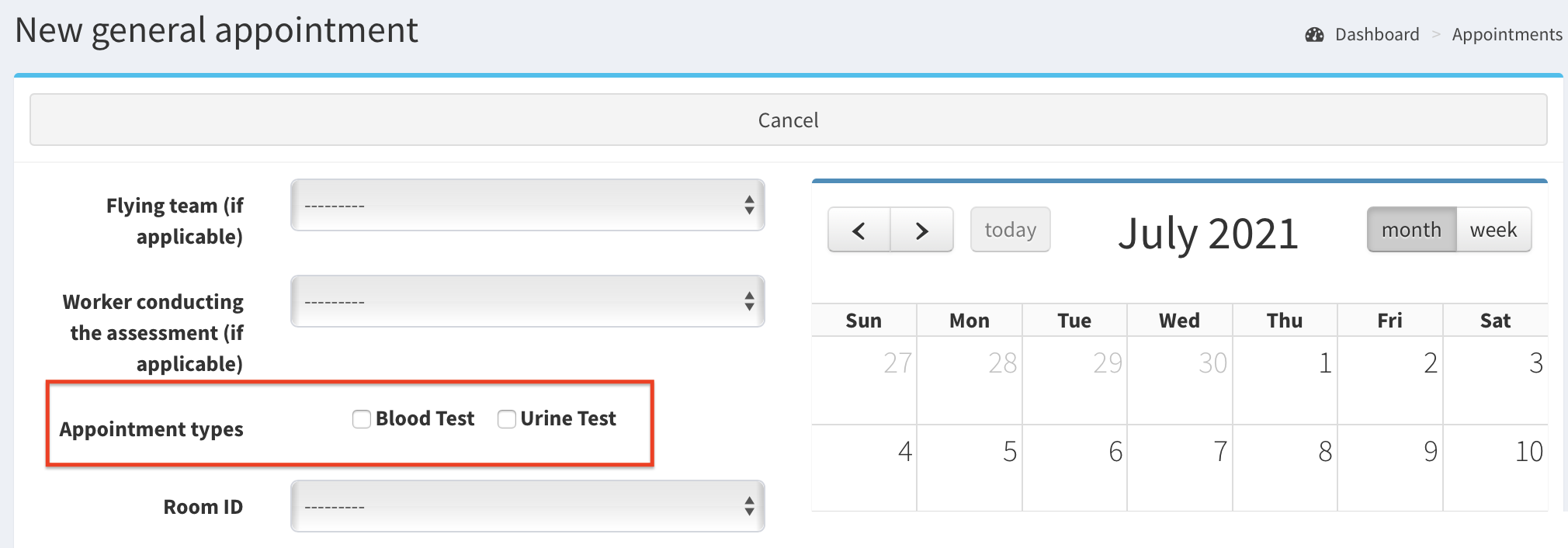 Appointment’s type (assessments)
How to manage the appointment?#
The appointments are displayed in the Calendar view of the appointments. Also, the upcoming appointments are listed below the calendar. To start editing an appointment, click on the appointment in the calendar or the Edit button in the list (image below, red arrows). During editing you can cancel, remove or change the details of appointment. To add a new appointment click buttons Add General appointment or Add Subject appointment (image below blue arrows).
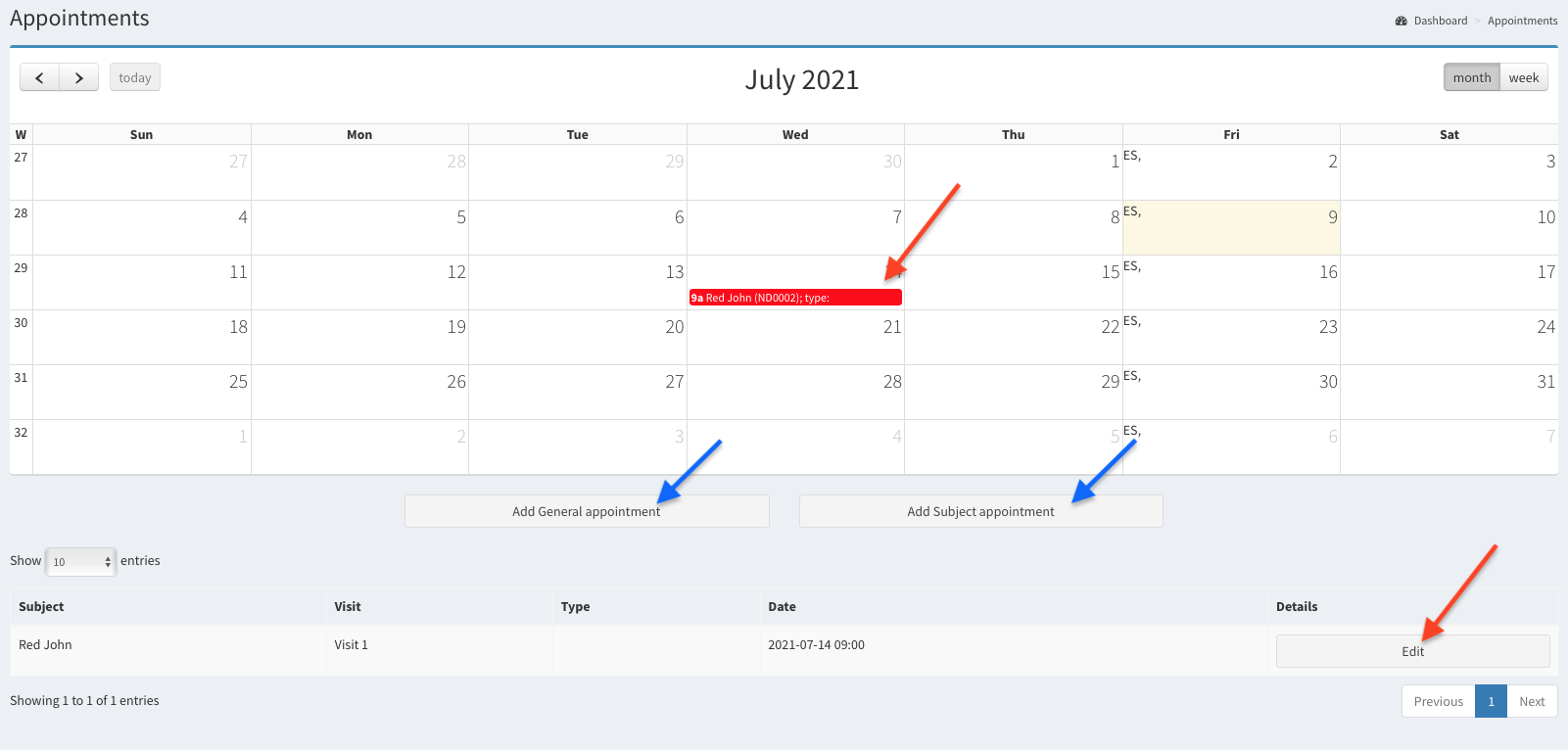 Appointment management
Add appointment#
An appointment can be added as general one or assigned to the patient’s visit. Find out more details how to:
Edit appointment#
This paragraph describes how to edit the appointment. Read here how to edit, cancel and remove an appointment.
What is visit?#
The visits are events fixed for the subject. During each visit the subject can have numerous appointments. The length of the visit is counted in days, by providing its start date and end date. To see the patient’s visits go to Subjects in the left menu. Visits are displayed on the left side of the Generic subject list (scroll horizontally in case the visits column are not visible).
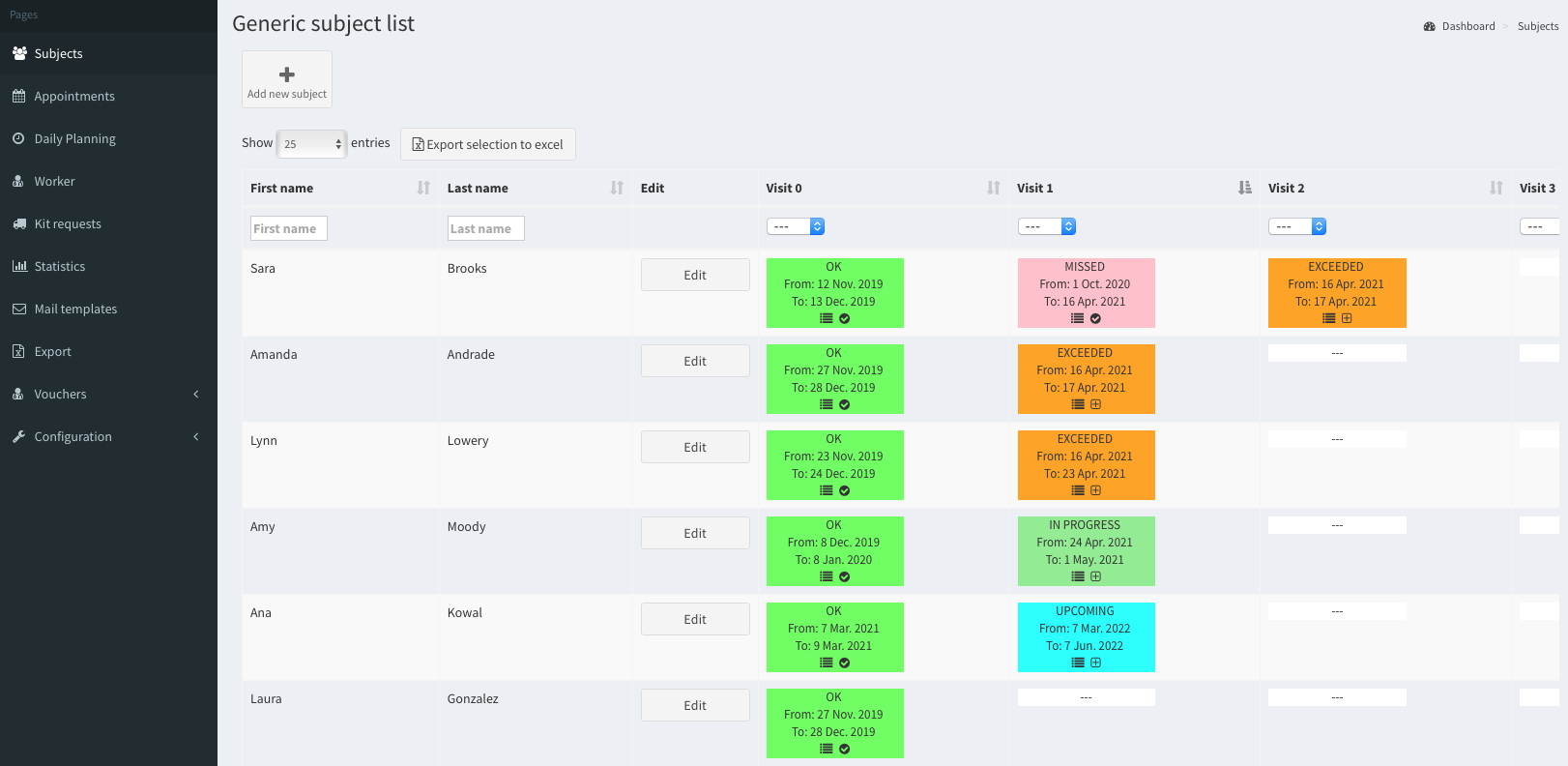 Visits
Visit management#
The visits can be added to any subject. To add the first visit (Visit 0) you go to Subjects and click Edit button for the particular subject. Edit subject will be displayed, click Subject’s visits button in the right top corner (image below).
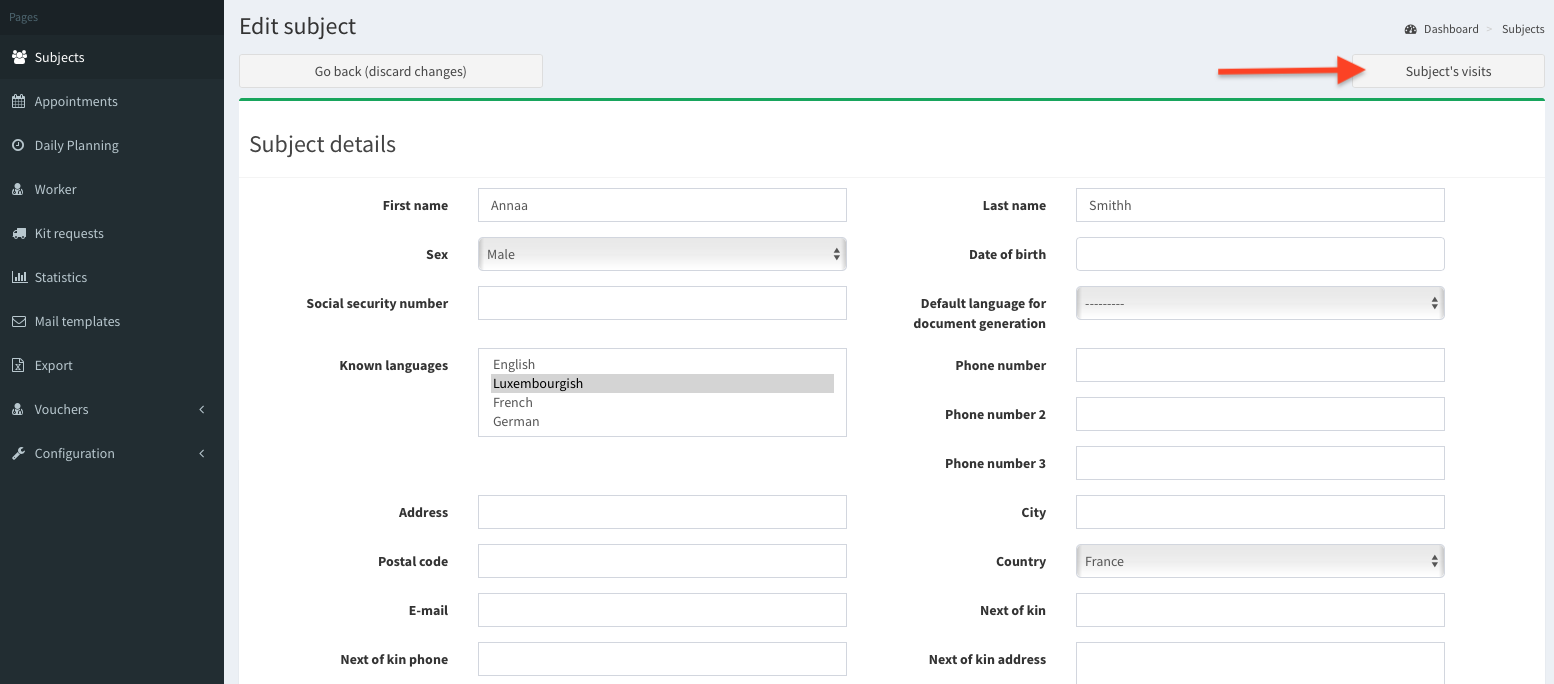 Edit subject
Now you see the subject’s List of visits. If case you are adding the first visit, the list is empty. Click button Add visit.
 List of subject’s visits
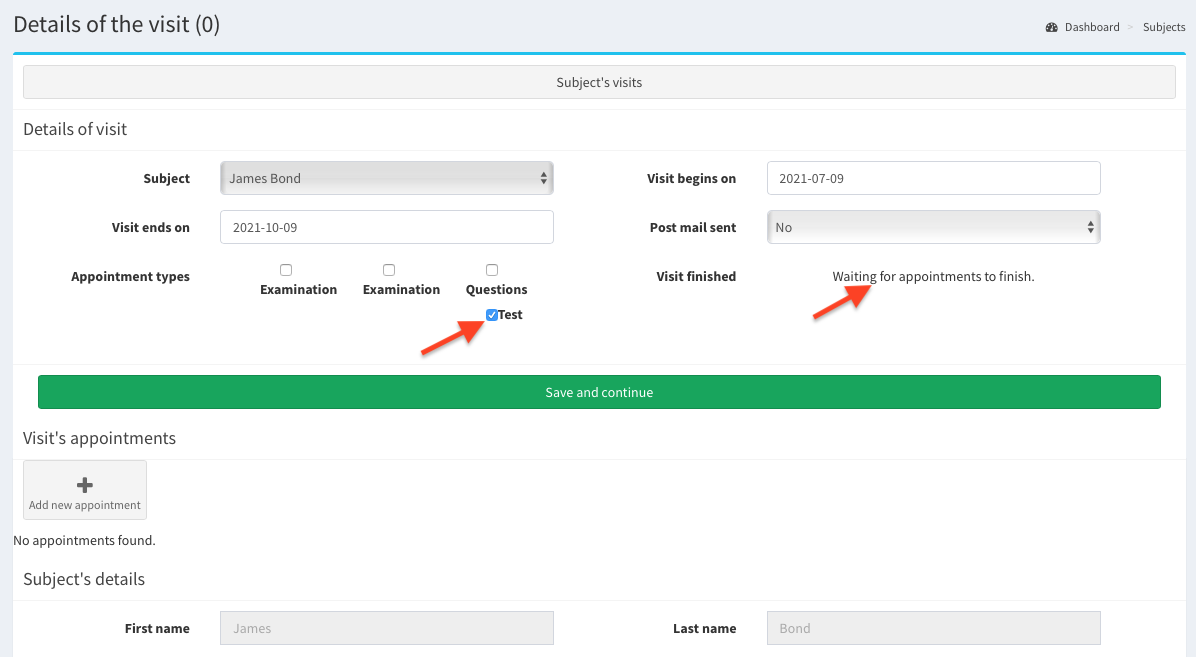
New visit window is open. Here, choose the start day of the visit. The end date will be filled automatically, by default the visit lasts three months. But, the end date is not fixed, it can be change by user. Also, you can tick here what kind of appointments the visit includes. If you do not choose any type of an appointment, the visit can be finished after all appointments are finished. But, if the appointment type is chosen, the visit can be finished only if that particular appointment’s type is included in visit, and it is finished. Below we present adding visit with appointment type Test.
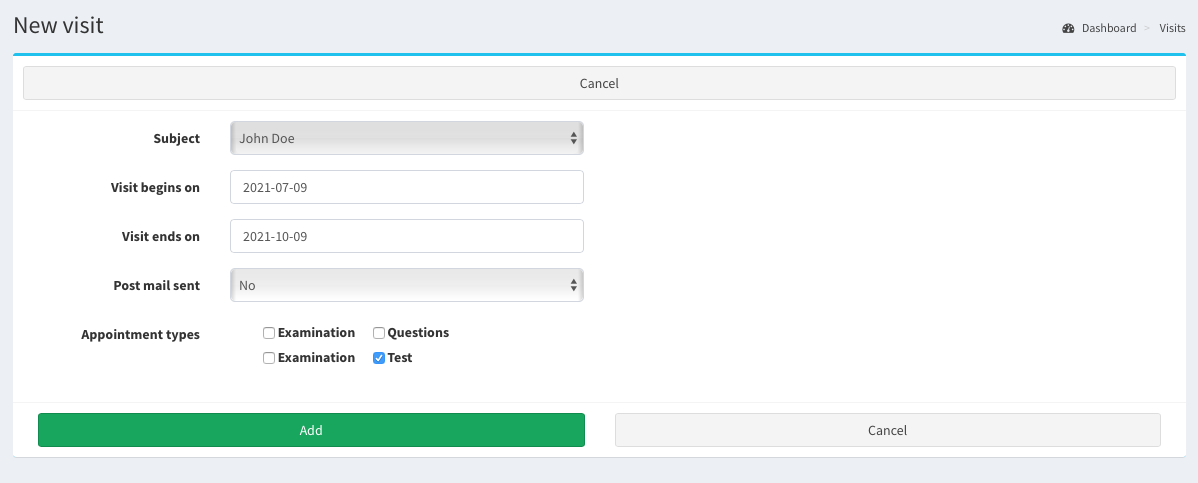 Add new visit
After clicking Save, visit details are shown.
 Add new visit
The visit is added with status Waiting for appointments to finish.
Mark visit as finished#
To mark visit as finished all visit’s appointments must be finished. Read more how to mark visit as finished.