Login#
To login to the Smart Scheduling, you need to have an account in Smasch. After providing your credentials if Two-Factor Authentication is enabled you will be asked to authenticate your account, with for example using Google Authenticator app.
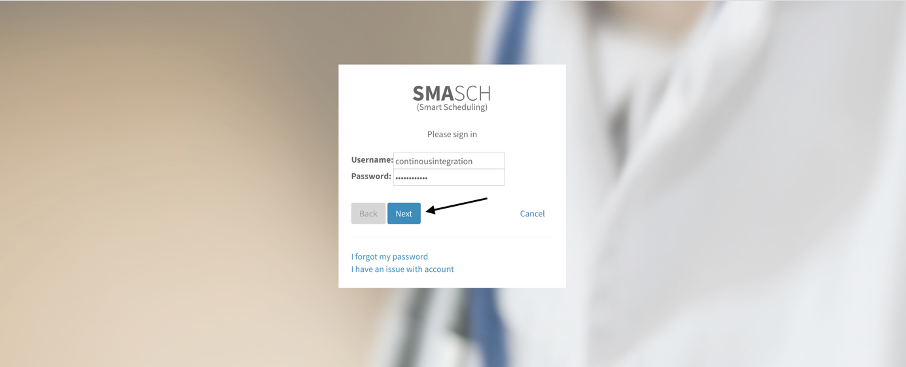
- Go to login page: http://localhost:8000/account/login/?next=/
- Type your username and your password.
- Then click on the blue Next button.
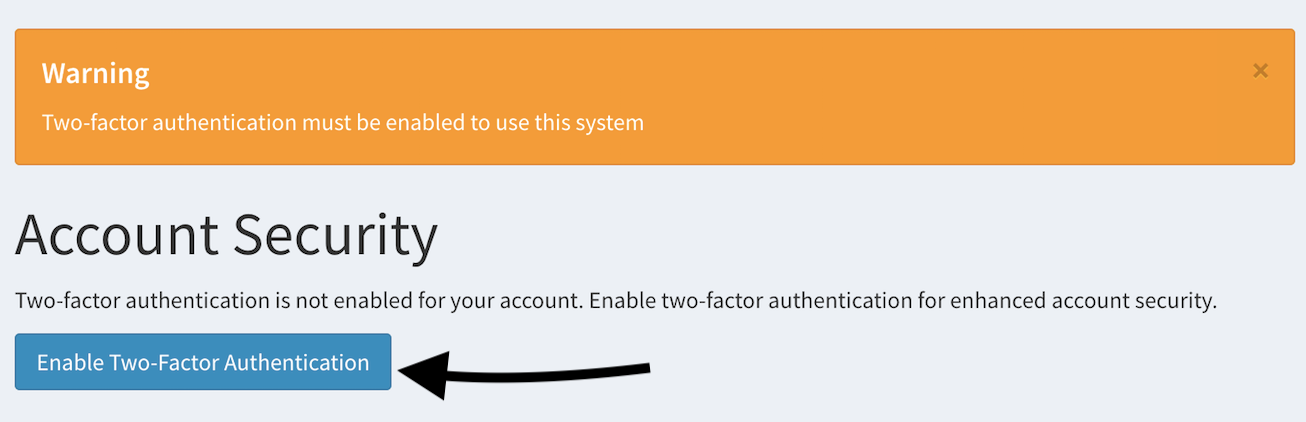
- Next step is to authenticate your account with your smartphone. This will happen only if Two-Factor Authentication is enforced in Smasch. To start, click on Enable Two-Factor Authentication button.
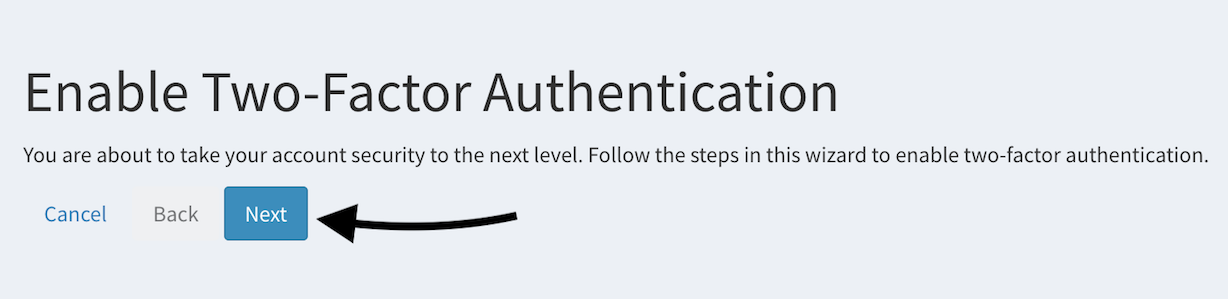
Then, click Next button.
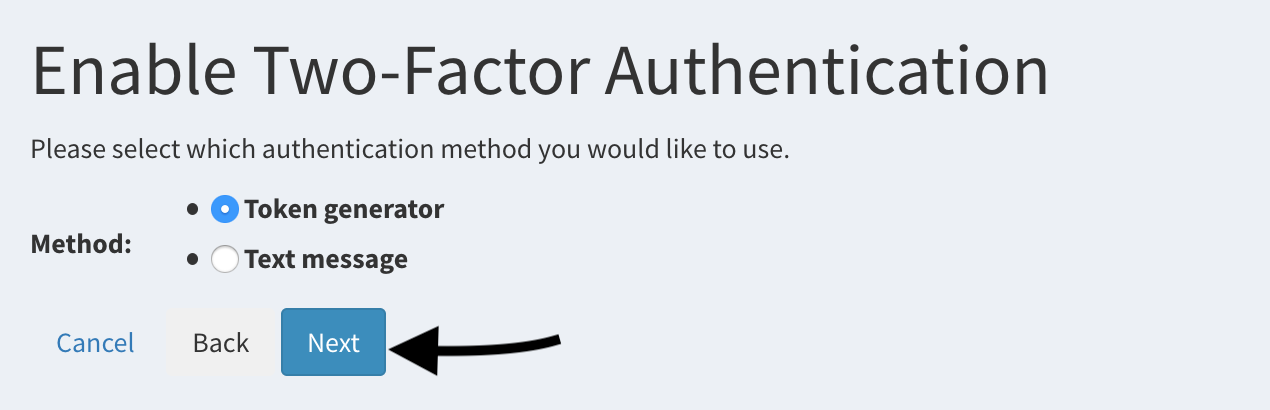
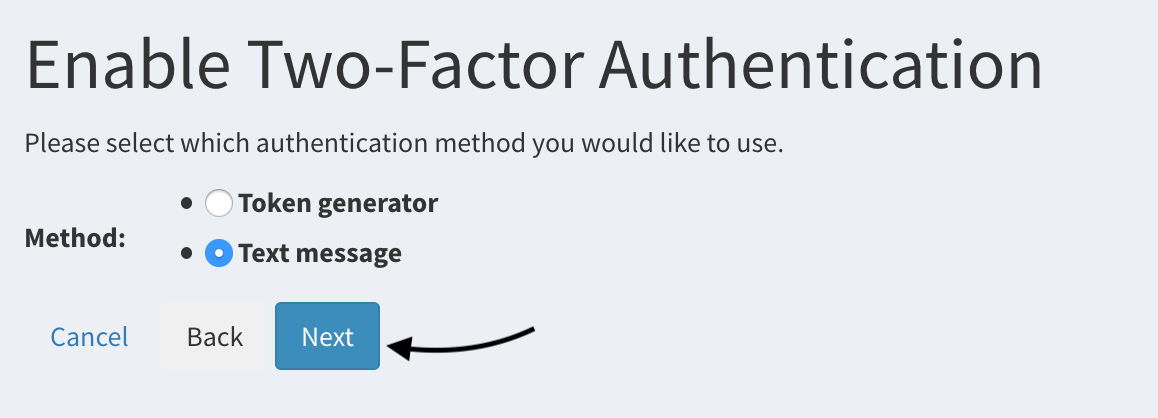
- There are two available methods of authentication: token generator and text message. To use the first option, the authentication app must be installed on your smartphone, like Google Authenticator (or LastPass Authenticator). To find out how to install it, and scan QR code, check the next paragraph (click here).
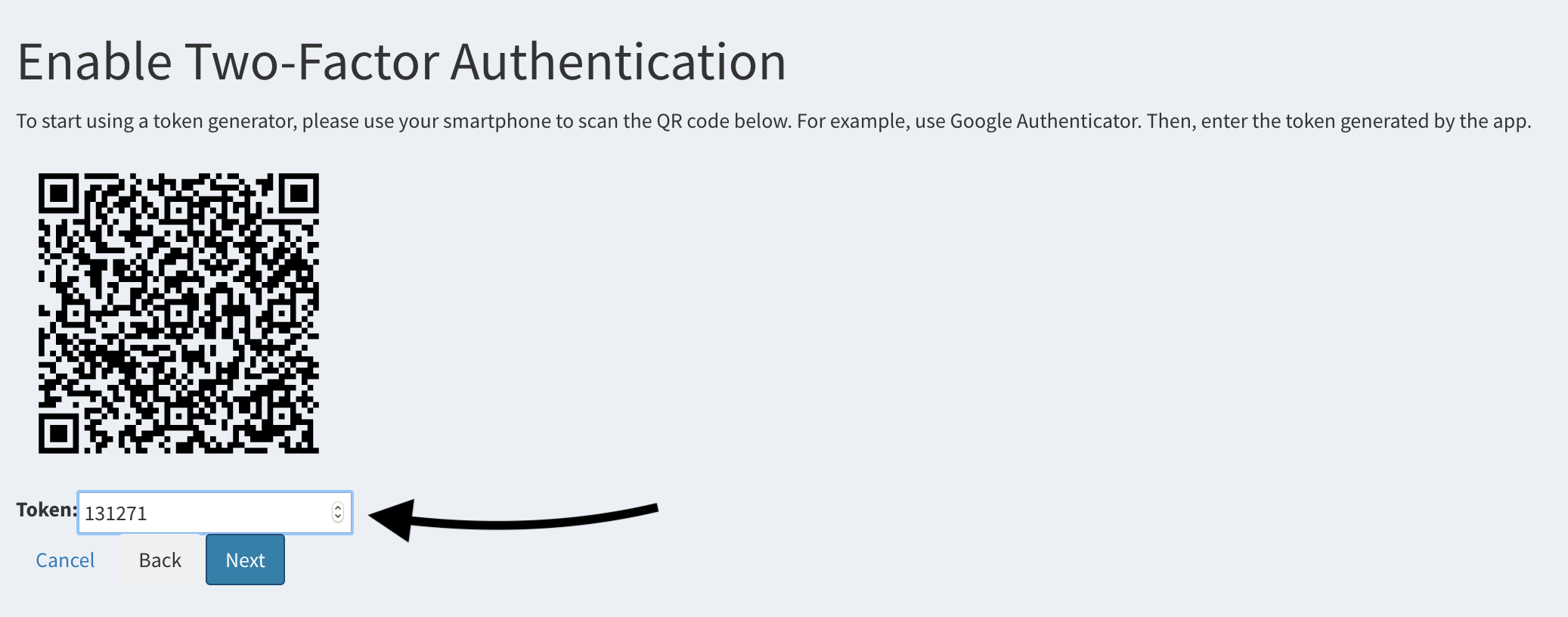
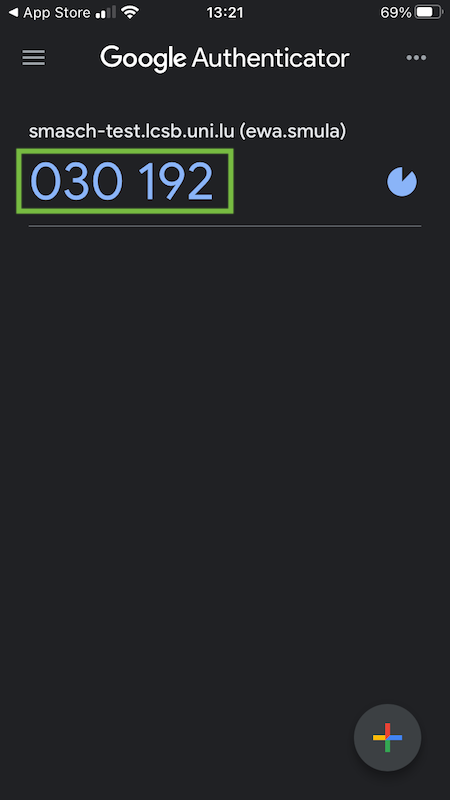
- Token generator - choose Token generator and click Next button. Now, open the Google Authenticator app on your smartphone and scan QR code, then input the generated token (6 digits) into field Token,then click Next.
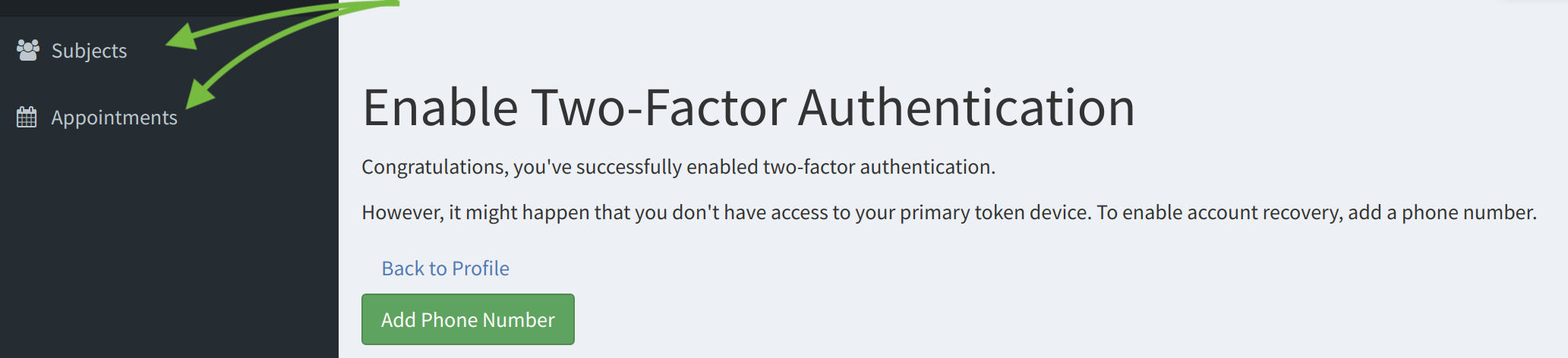
Now you are logged in successfully. Click on Subjects or Appointments to display Smart Scheduling dashboard.
- Text message - choose Text message and click Next button. Provide your phone number and input the token (6 digits) which you receive in the text message, then click Next.
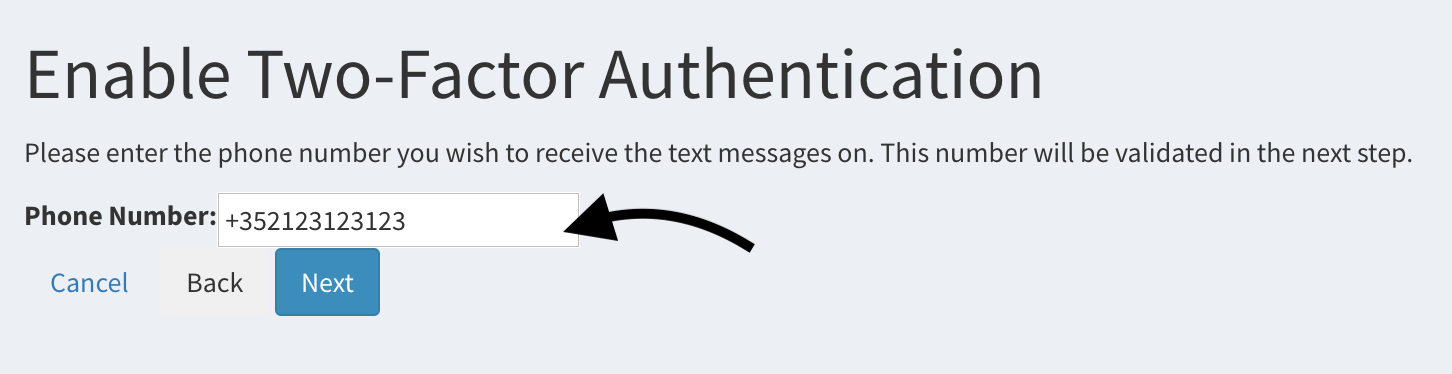
Now you are logged in successfully. Click on Subjects or Appointments to display the Smart Scheduling dashboard.
Installing app and scanning QR code with Google Authenticator#
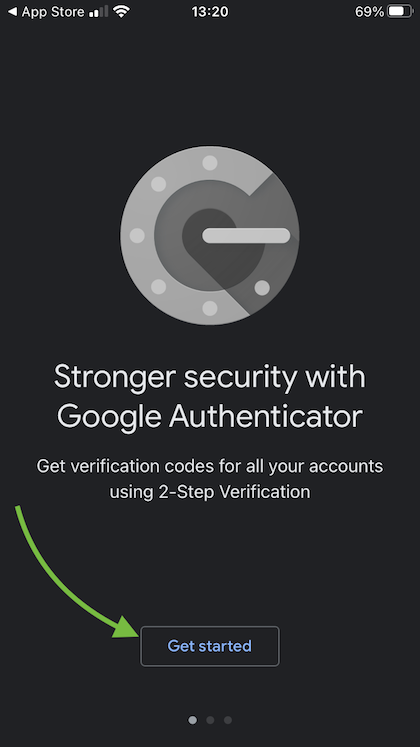
- In your iPhone’s App Store (Android Play Store) find Google Authenticator, click install.
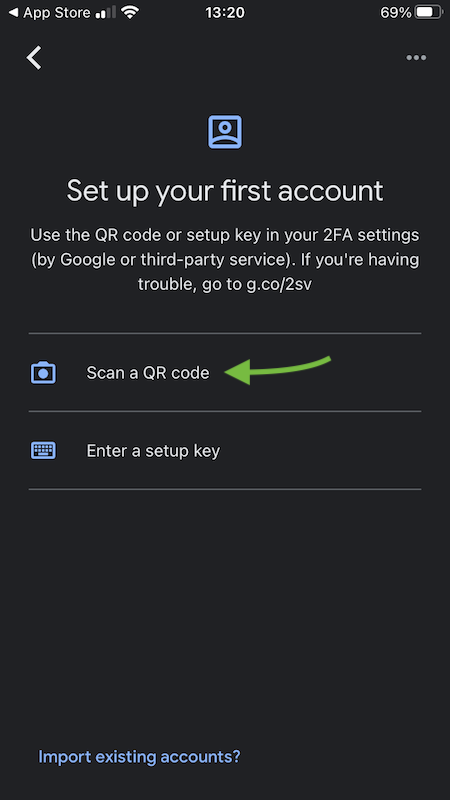
- Once installed, open it and choose Get started, then choose Scan a QR code. Now you can scan QR code, which is displayed in Smart Scheduling, with your smartphone’s camera. Due to scanning the token (6 digits) is generated. Input the token to the requested field Token in Smart Scheduling, to finish logging in.
Logout#
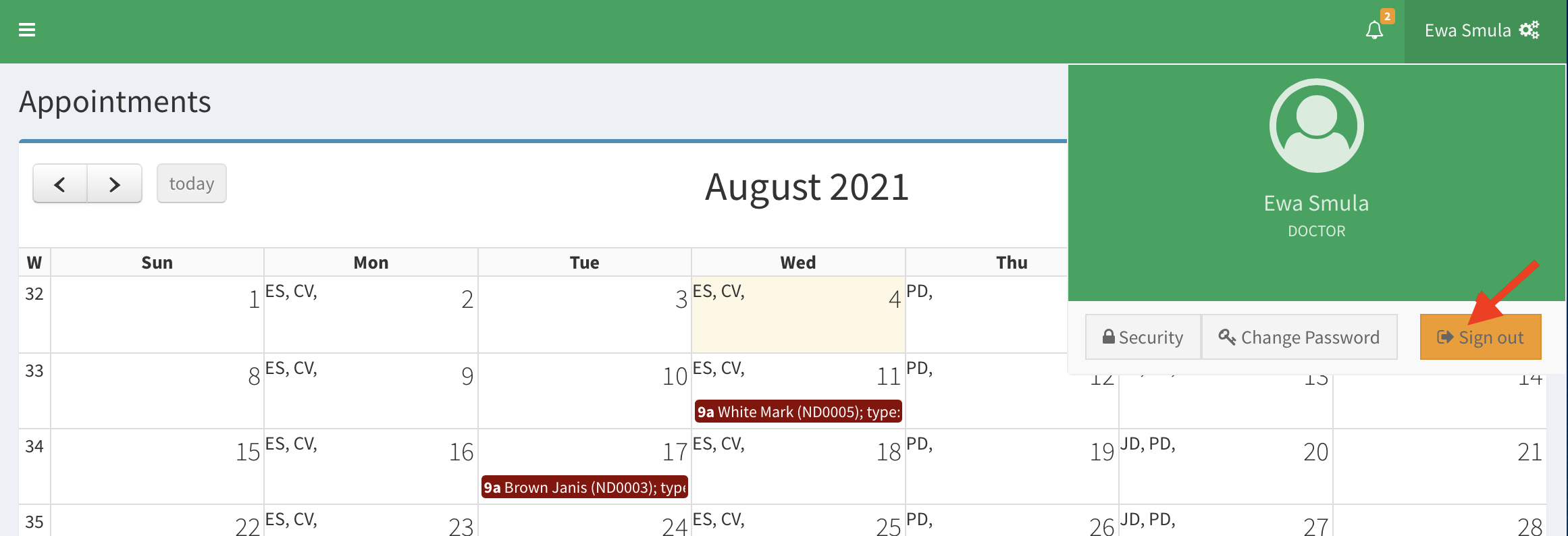
- To logout from Smart Scheduling, you need to click on your username in the top right corner.
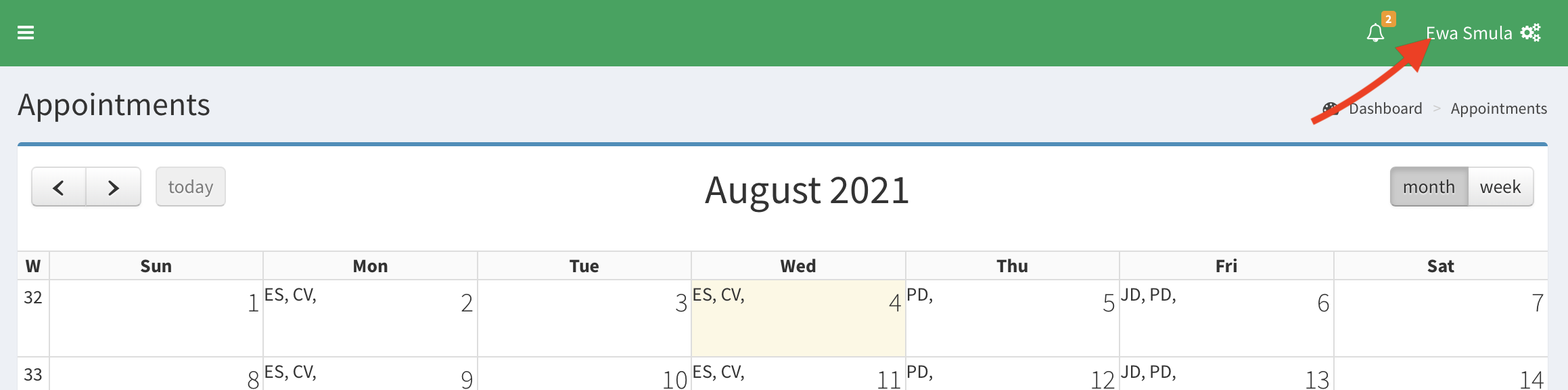
- Now you need to click on the Sign out button.