Edit an appointment#
The details of the appointment can be edited at any time by clicking on the appointment in the calendar view or from the list of the appointments in a visit. The appointments also can be cancelled or removed.
Note: In case the appointment has status finished it cannot be deleted.
Cancel an appointment#
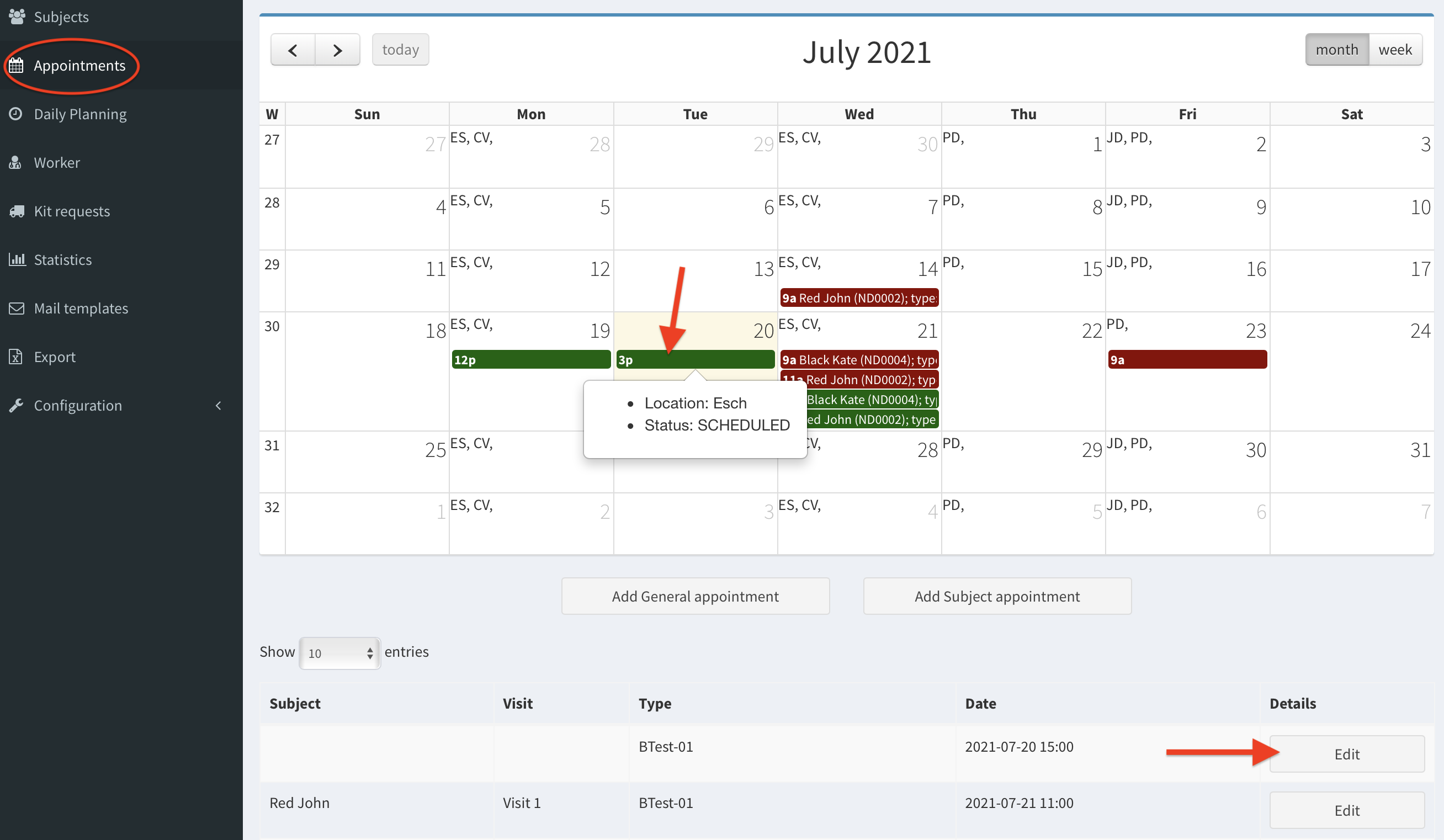
- Click on the Appointments button on the left column. Click appointment’s Edit button at the bottom of page or click on the colored bar in the calendar view to start editing.
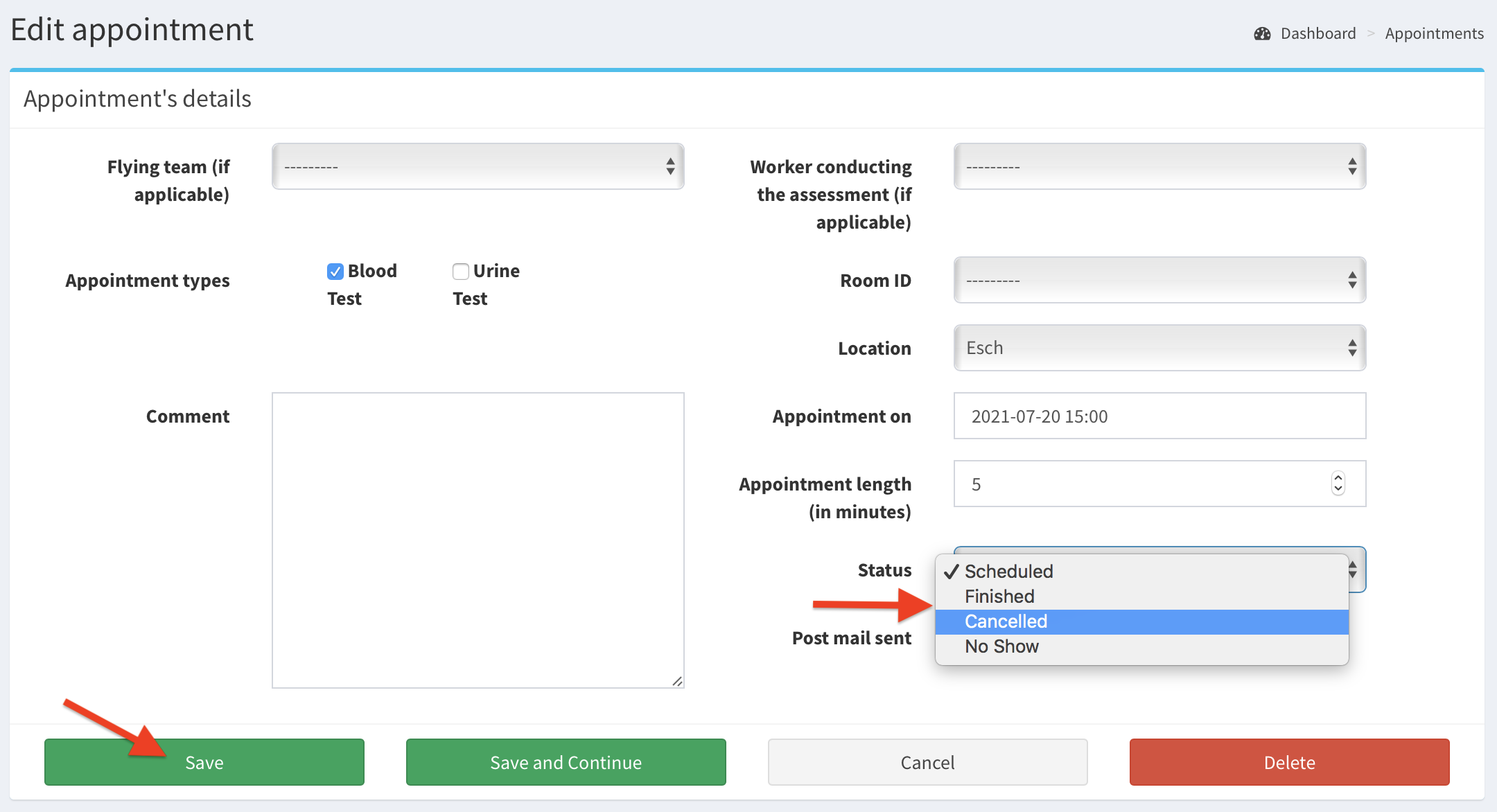
- Now you can edit any details of the appointment. Moreover, to cancel an appointment change its Status on cancelled. Click Save.
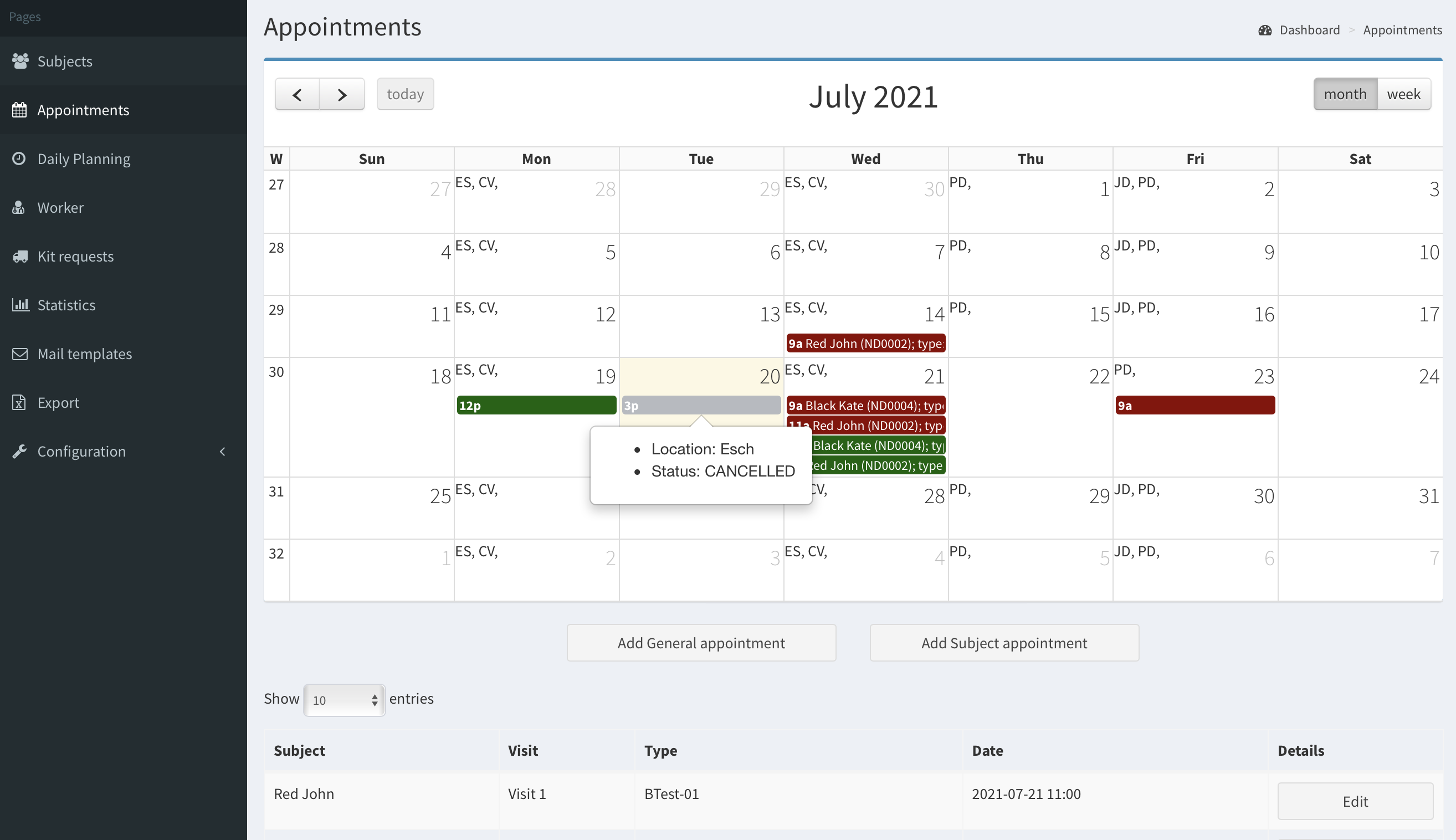
- Now the calendar view has changed. The appointment is cancelled (gray color) and it is not displayed at the list of appointments at the bottom of page. Note: Cancelled appointment cannot be deleted.
Delete an appointment#
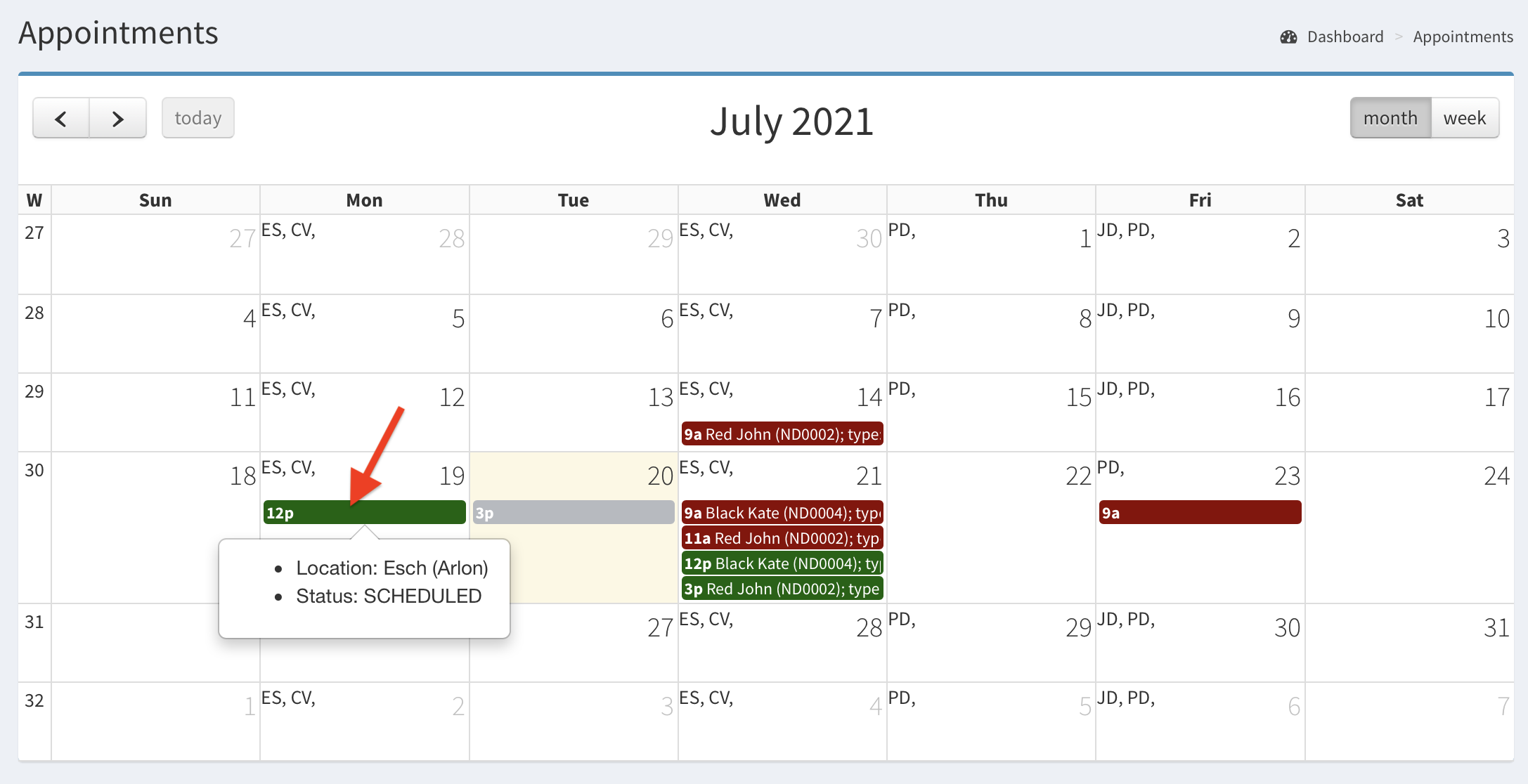
- Click on any scheduled appointment in the calendar or Edit button in the list of appointments to edit the appointment’s details.
- Click Delete button.
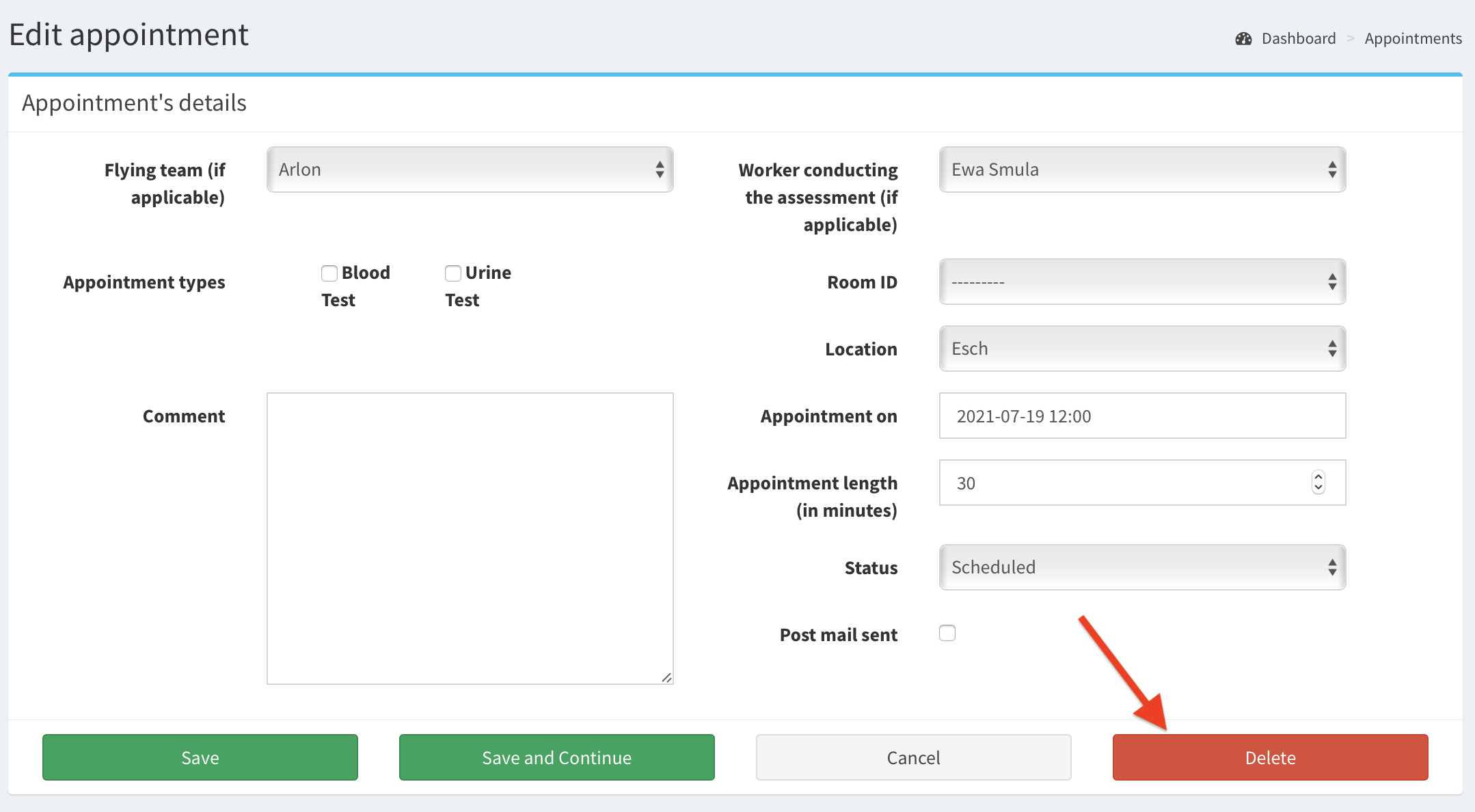
- Then click again on the Delete button to confirm the choose.
