Add / edit / print voucher#
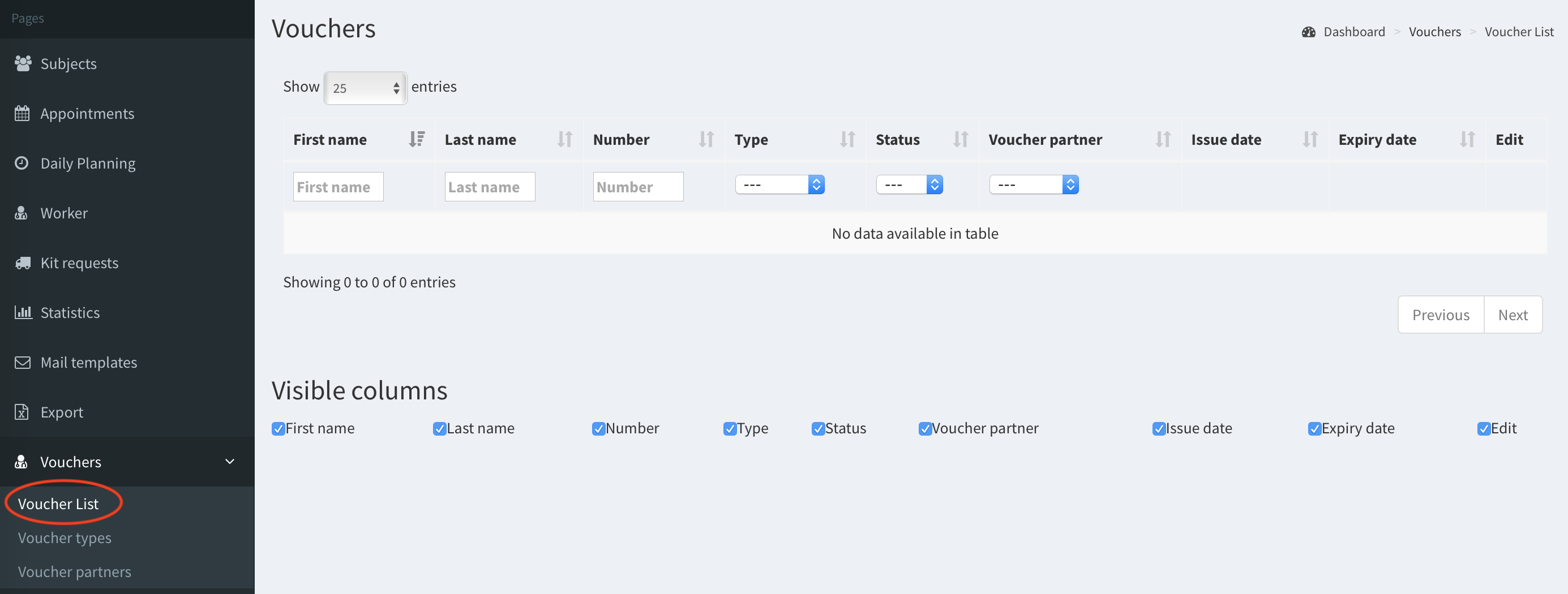
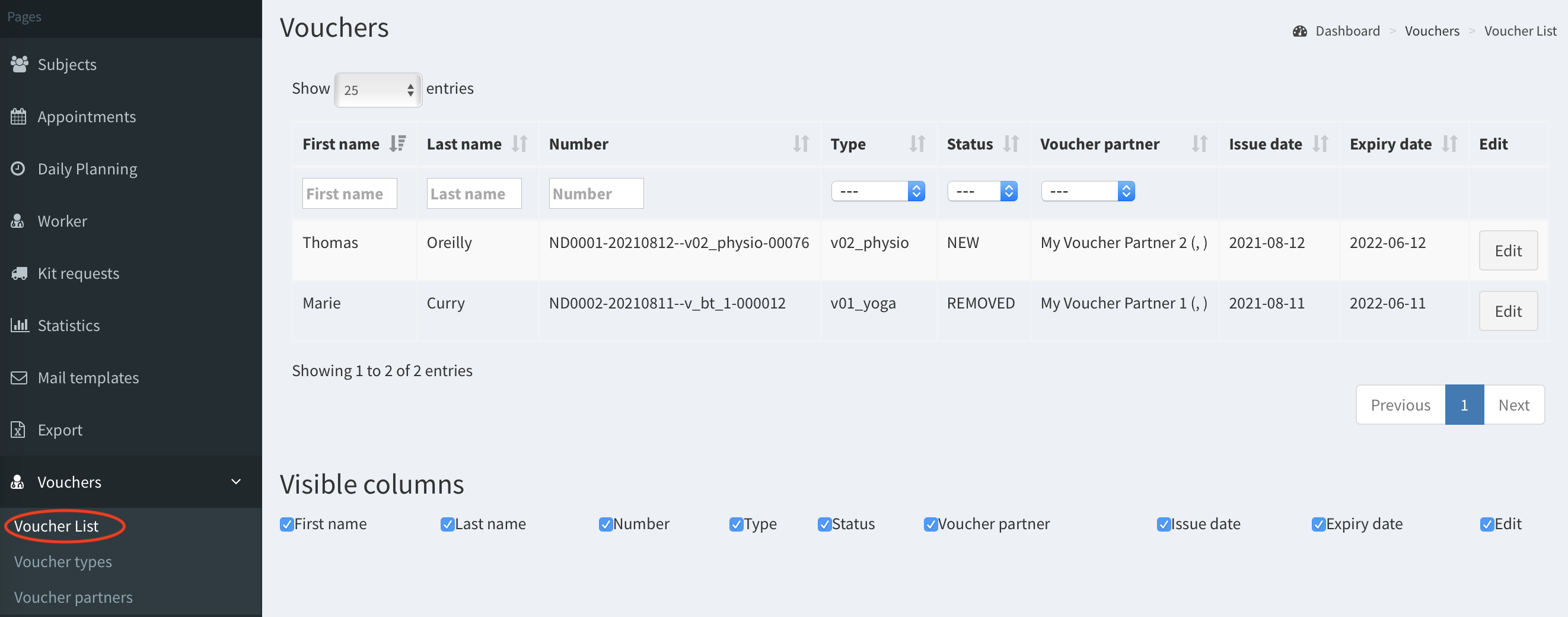
All vouchers are listed in Voucher list.
Add voucher#
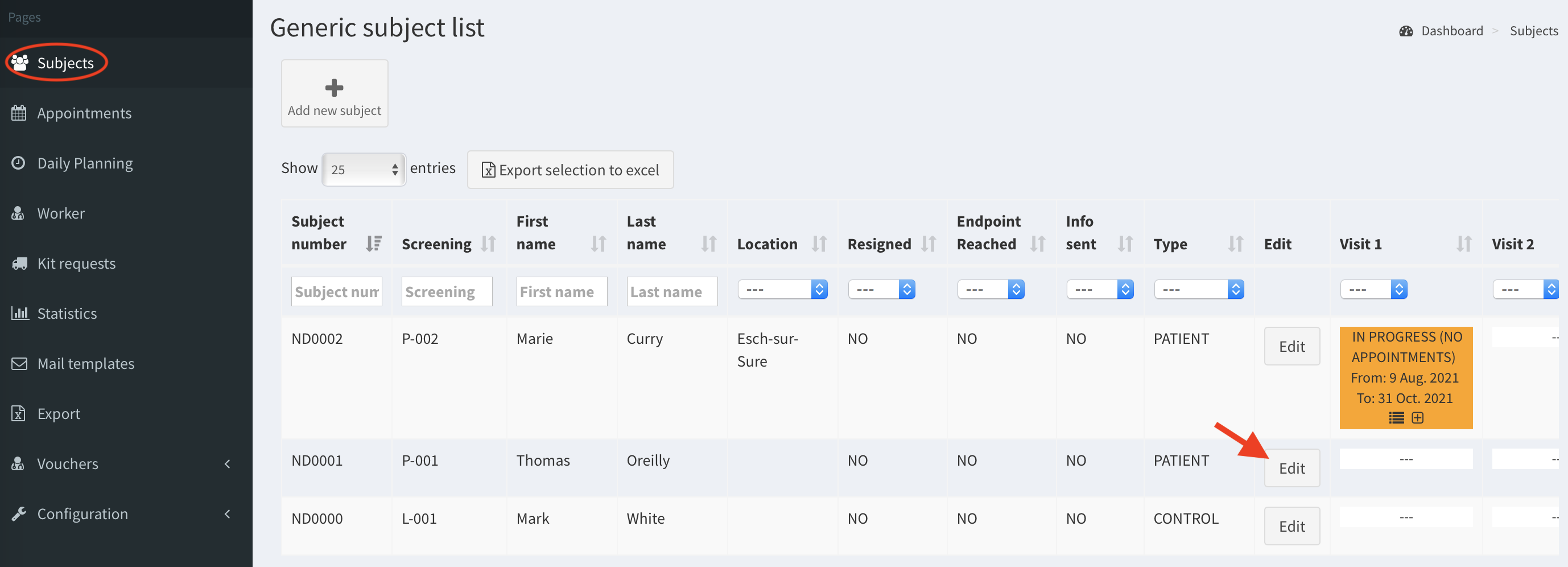
- Go to Subjects in the left panel. Click Edit button of the subject you wish to add voucher.
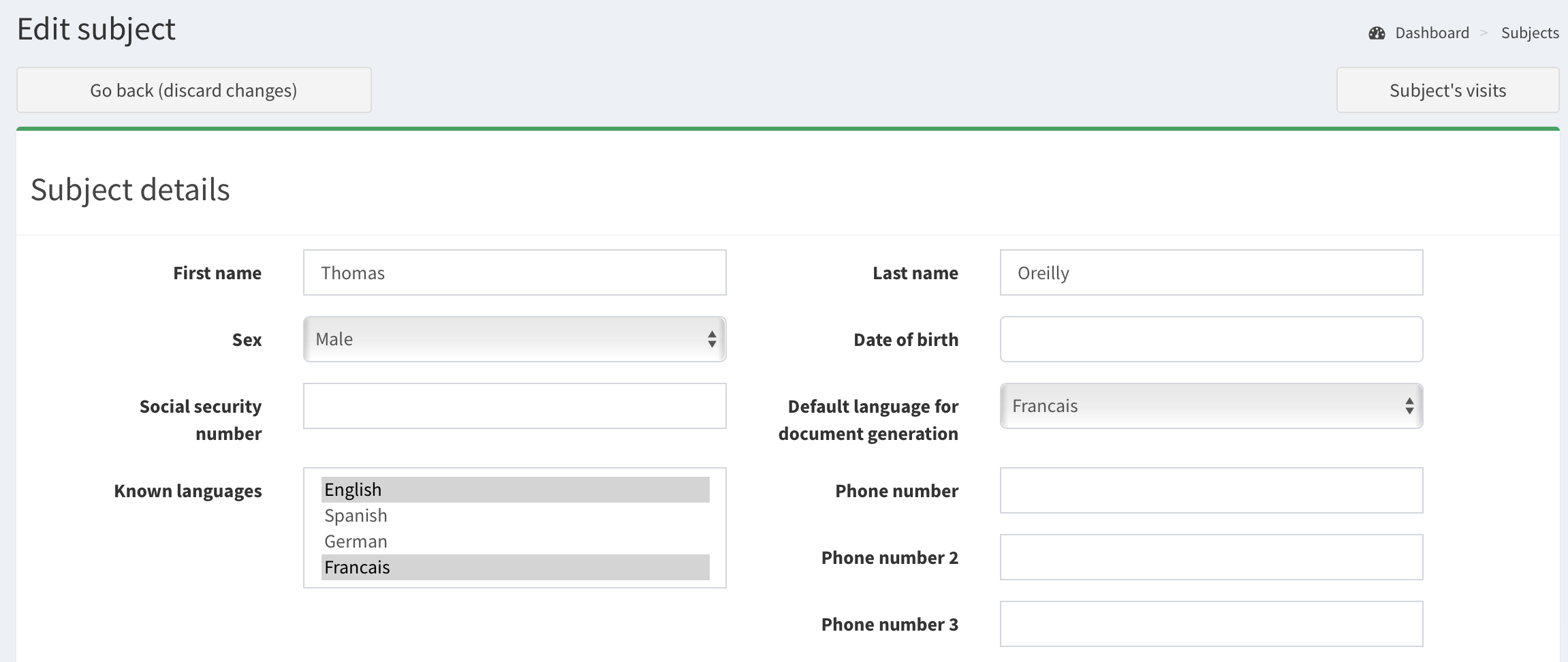
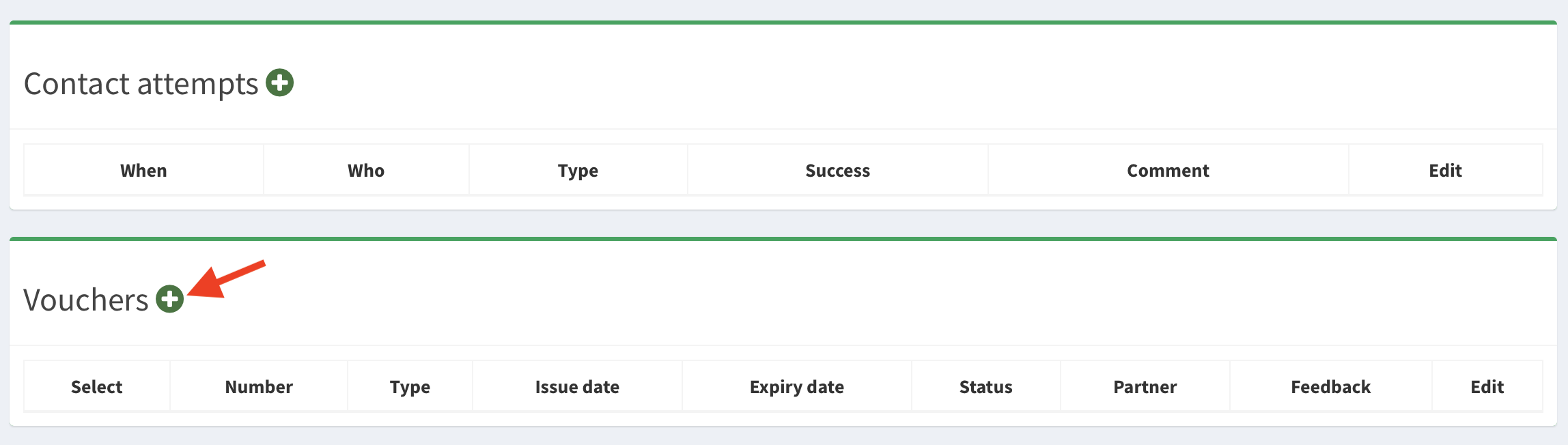
- Scroll down the Edit subject page and click plus icon in Vouchers section.
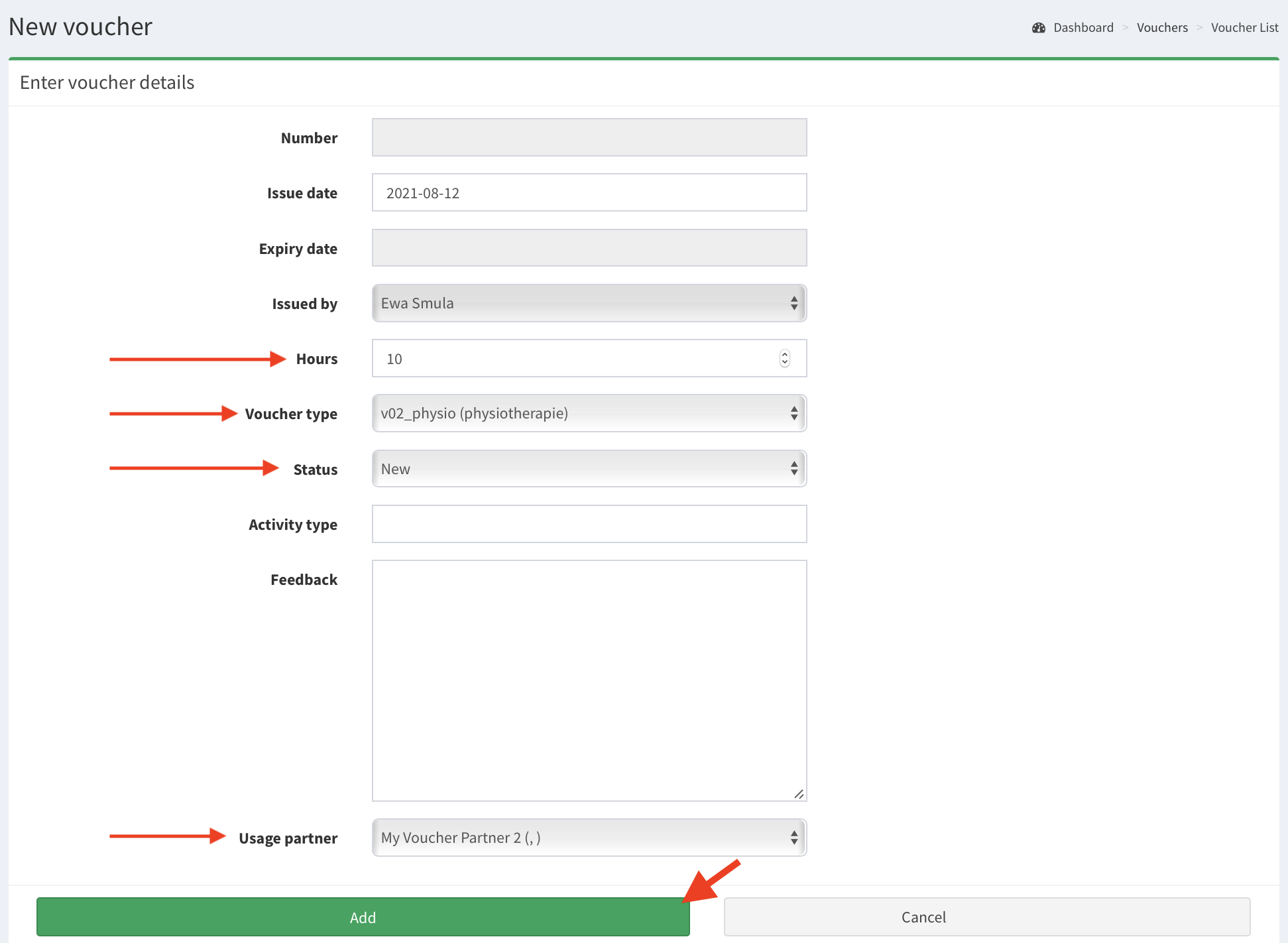
- Fill in the form. Note, that values for gray color fields will be generated automatically later, after clicking Add button.
- Expire date - the field is filled automatically and describes duration of the voucher. The date is filled based on the SMASCH study configuration.
- Hours - the overall duration (in hours) of visits/sessions, that the patient is entitled with the voucher.
- Voucher type - mandatory field, you choose the required voucher.
- Status - choose from the list the status of the voucher: (New, In use, Used, Expired, Removed).
- Usage partner - the voucher partner. This field is mandatory field and cannot be changed later on by user.
 {:style=“display:block; margin-top:15px;”}
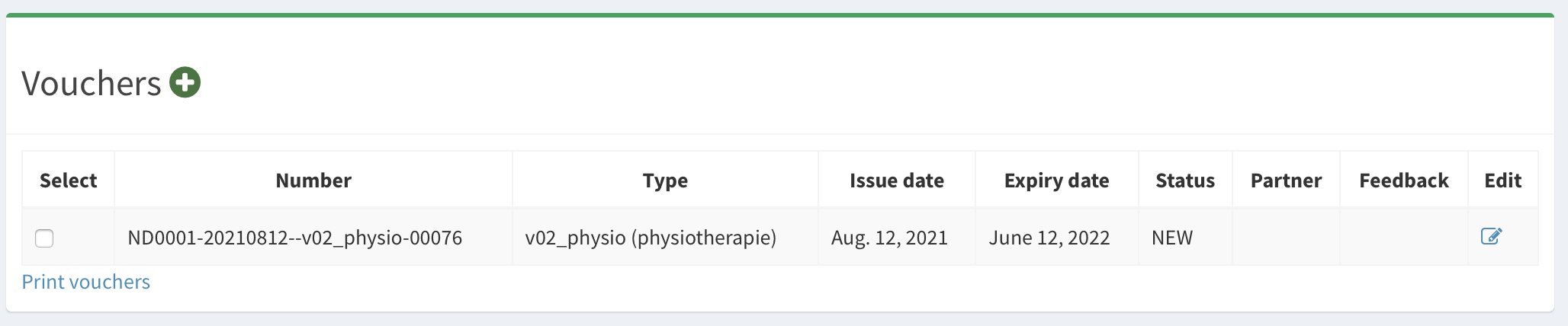
- Now the voucher is added. If you scroll down the page Edit subject you see it in Vouchers section.
- Also, you can see the vouchers in the Vouchers list.
Editing voucher#
Editing the vouchers is very limited. The only feature of a voucher you can change is its Status.
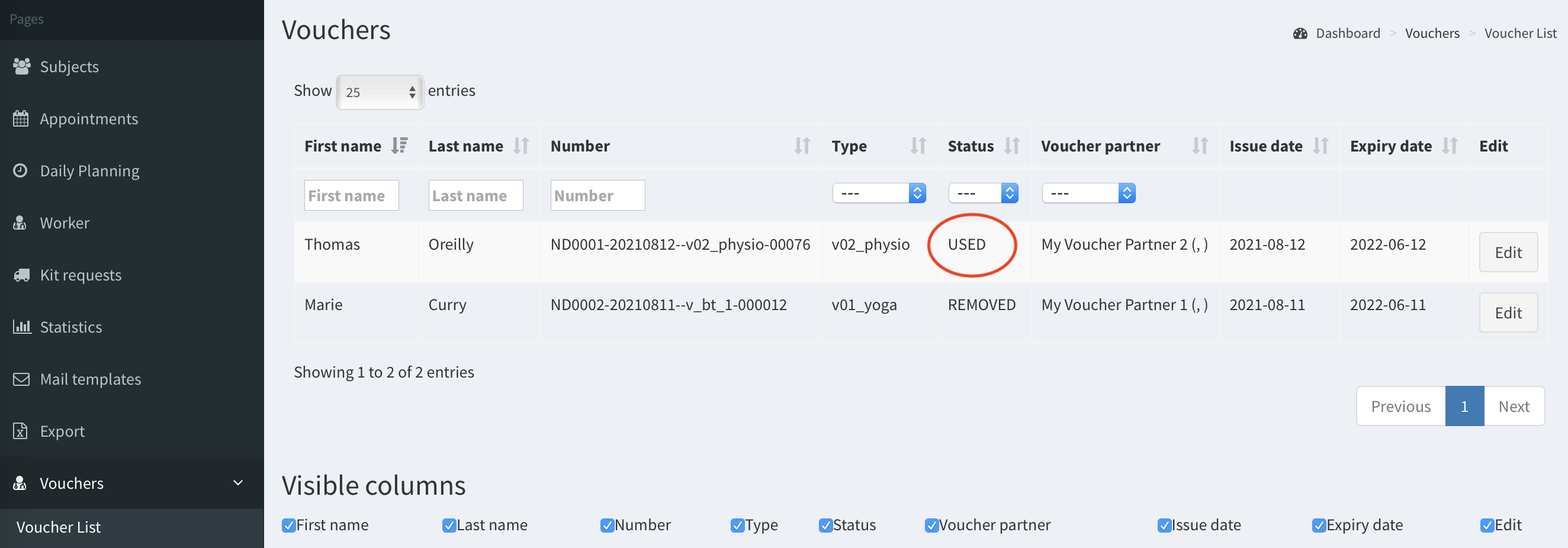
- To edit voucher status, go to Subjects >> Edit subject page or Vouchers list. Click Edit.
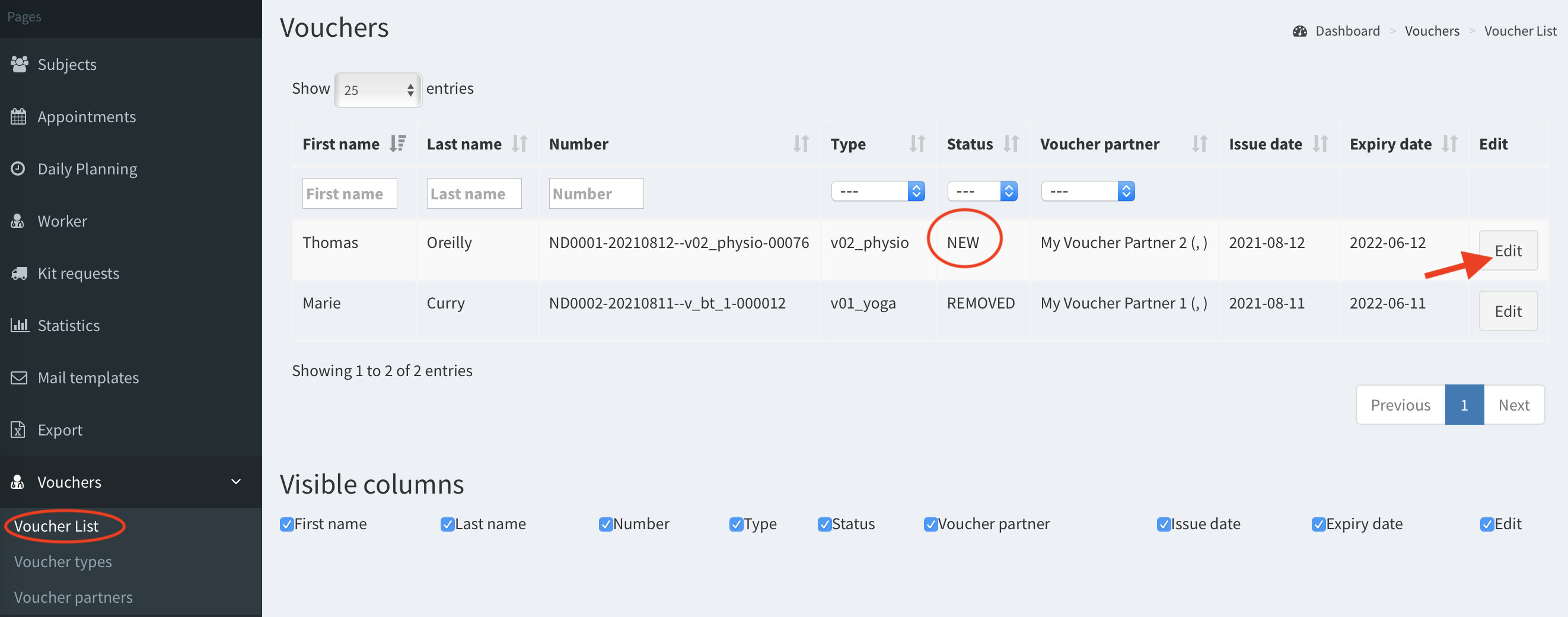
- Change the status. Note: if you change the status on: Used, Expired or Removed this change cannot be undone after saving.
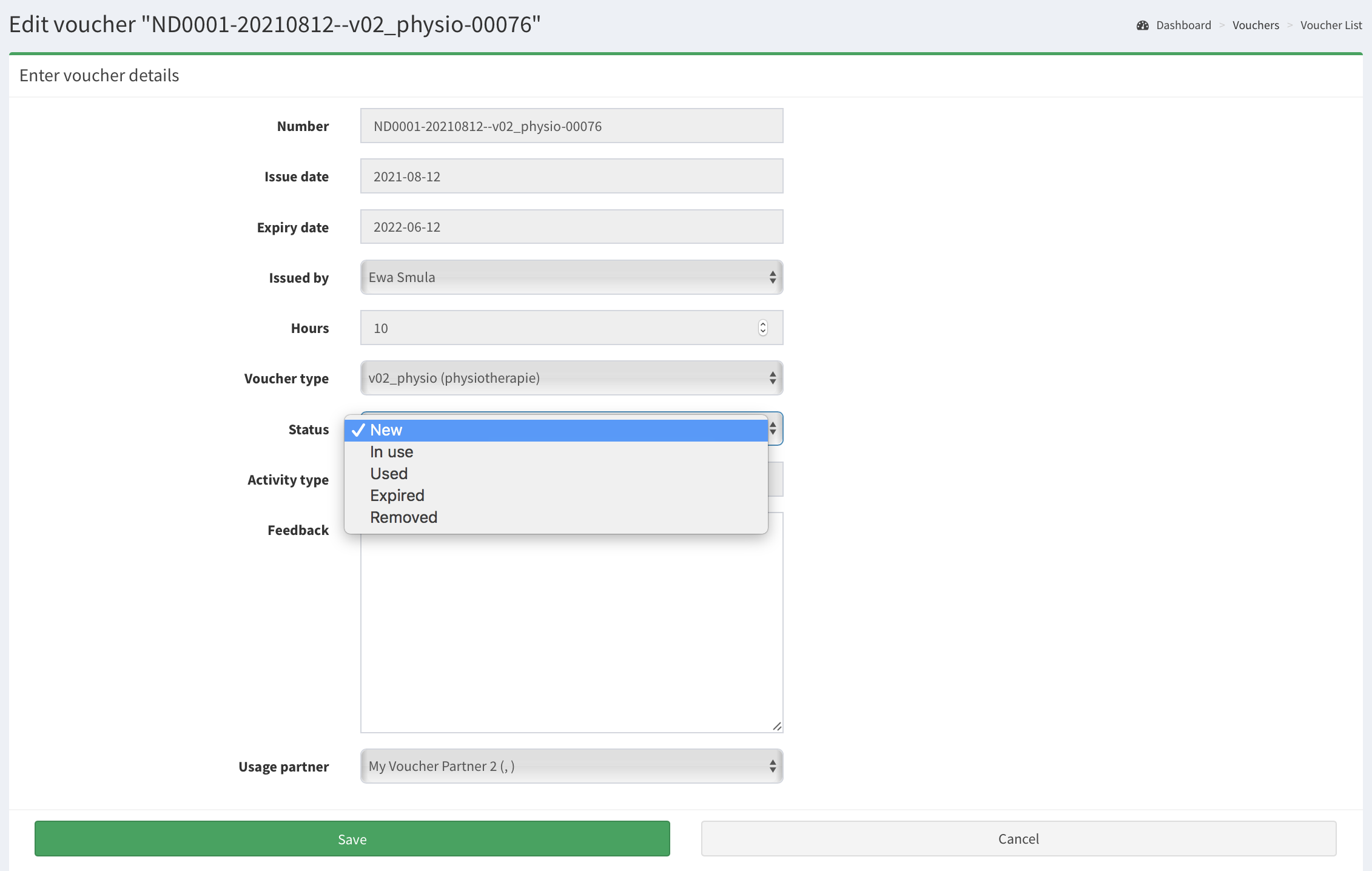
- After making a change, click Save button. You can see the voucher with amended status.
List of voucher partner sessions#
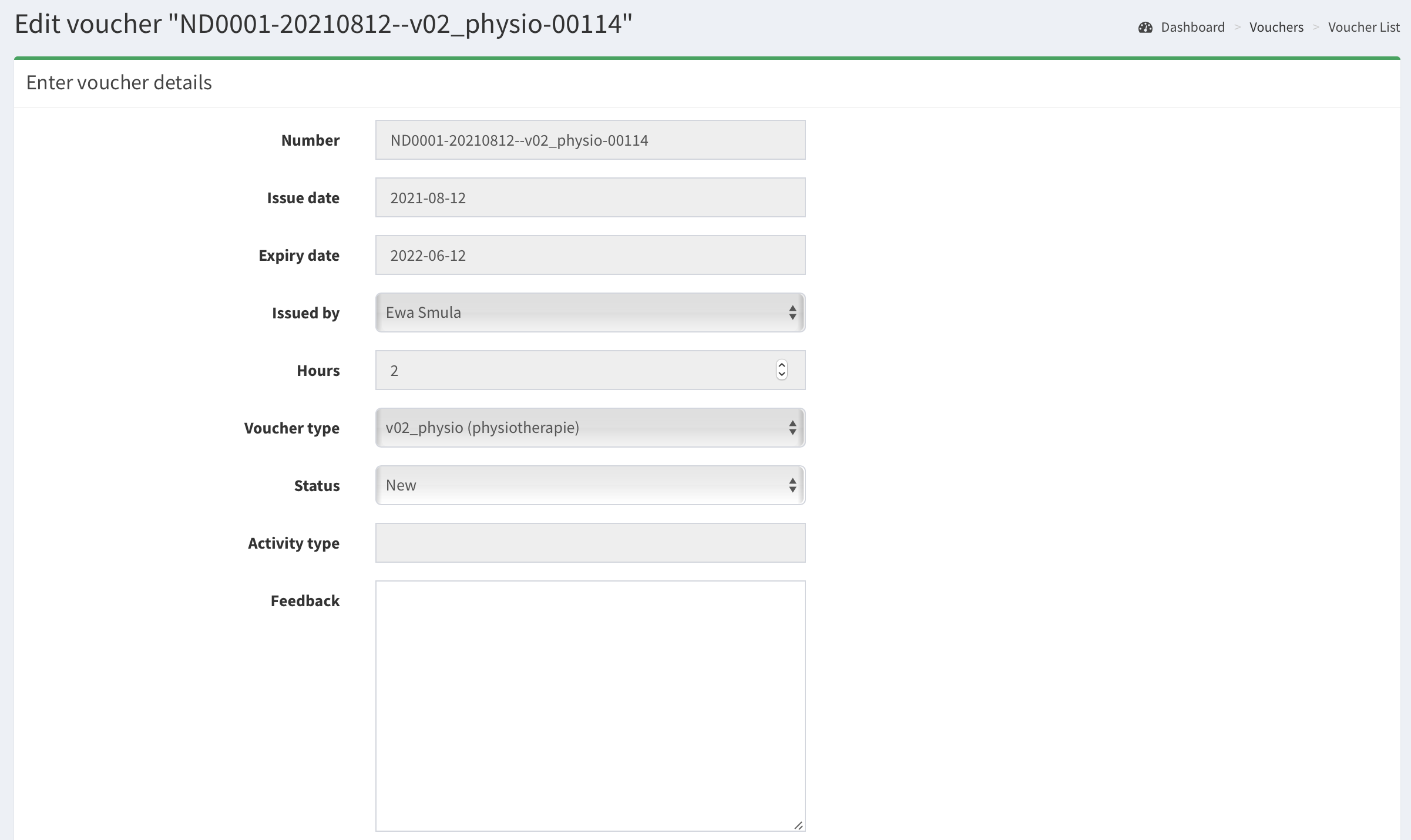
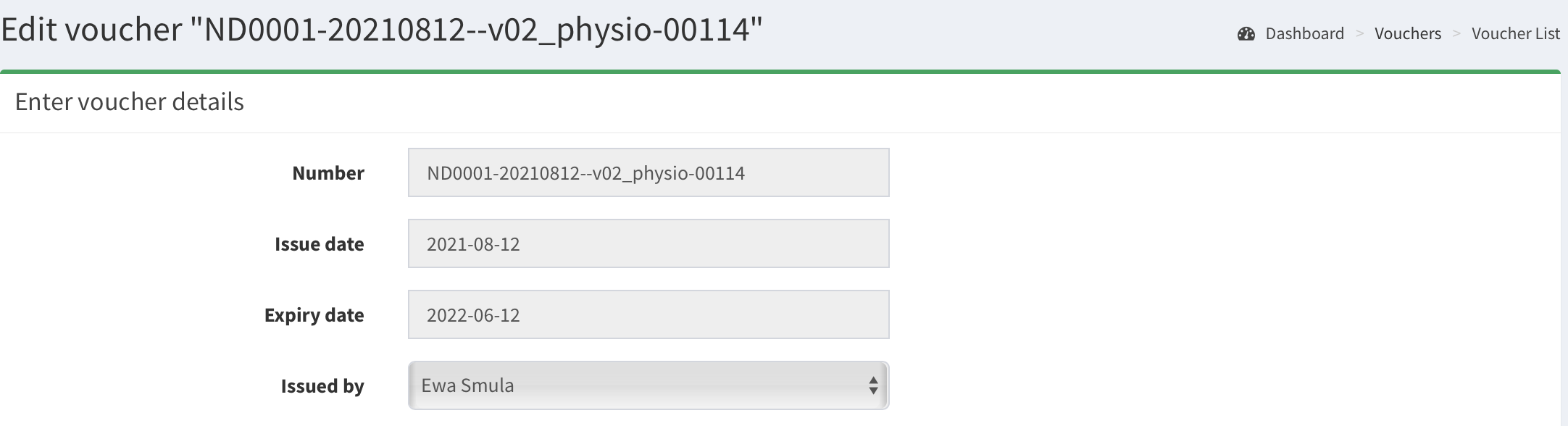
In Edit voucher page there is also section List of voucher partner sessions. This allows you to monitor the voucher’s usage. For example, if there is a voucher for two hours long (image below), the patient can take two one-hour long sessions or four 30 minutes sessions. Each time patient will attend to the session it should be inputted in the list.
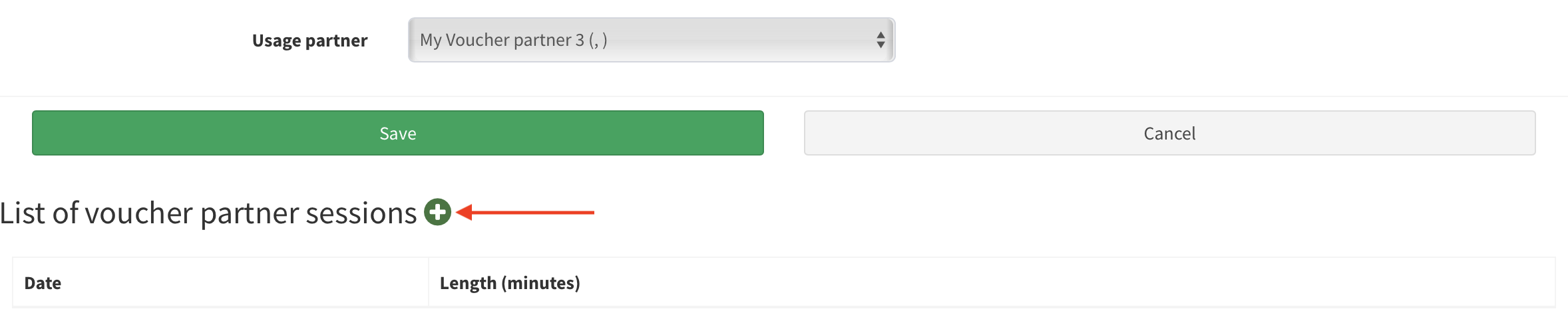
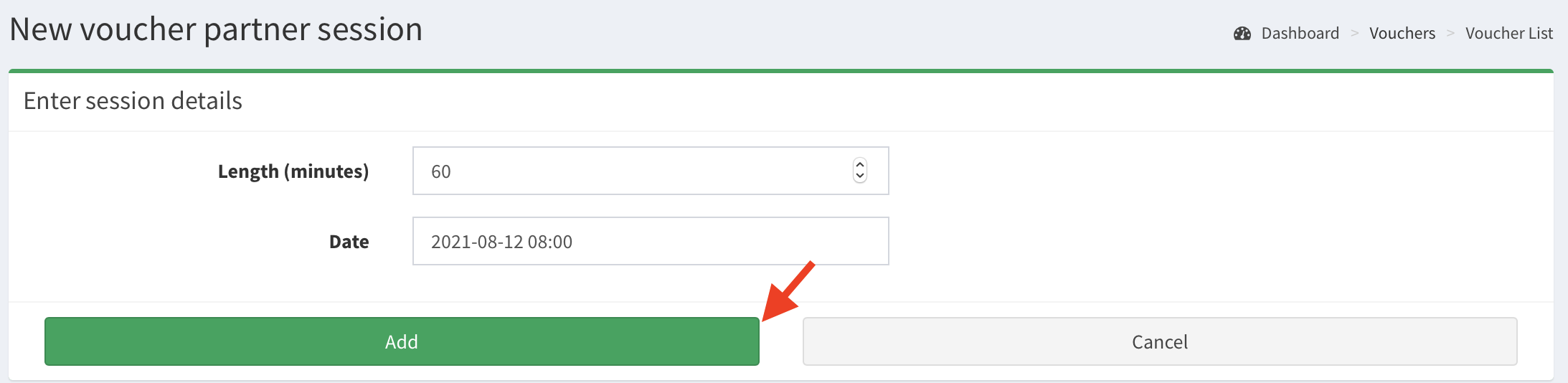
To add a session:
Click on plus icon (image above).
Fill in the form and click Add.
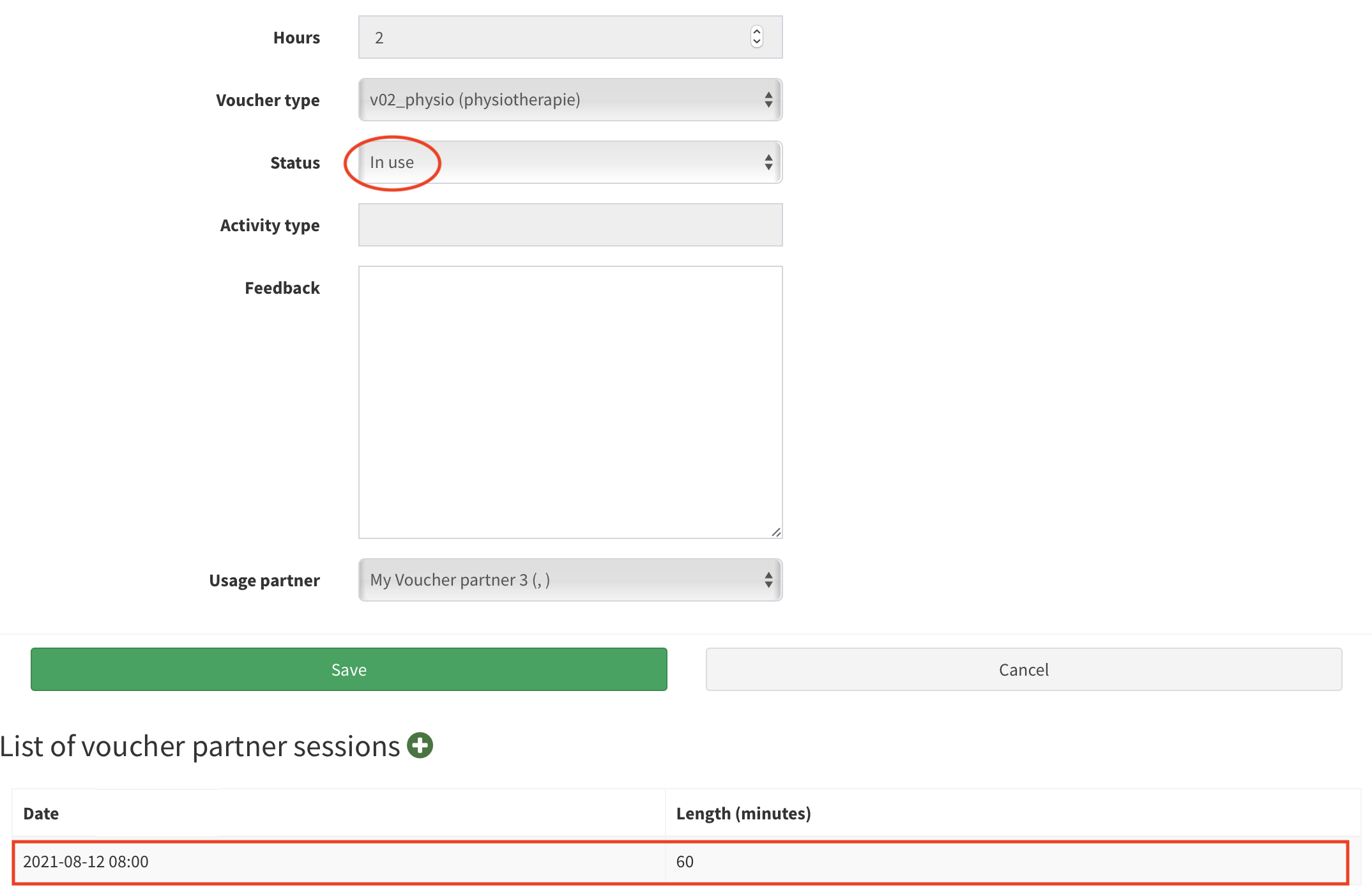
- Now you can see that the voucher status is In use and the session is listed.
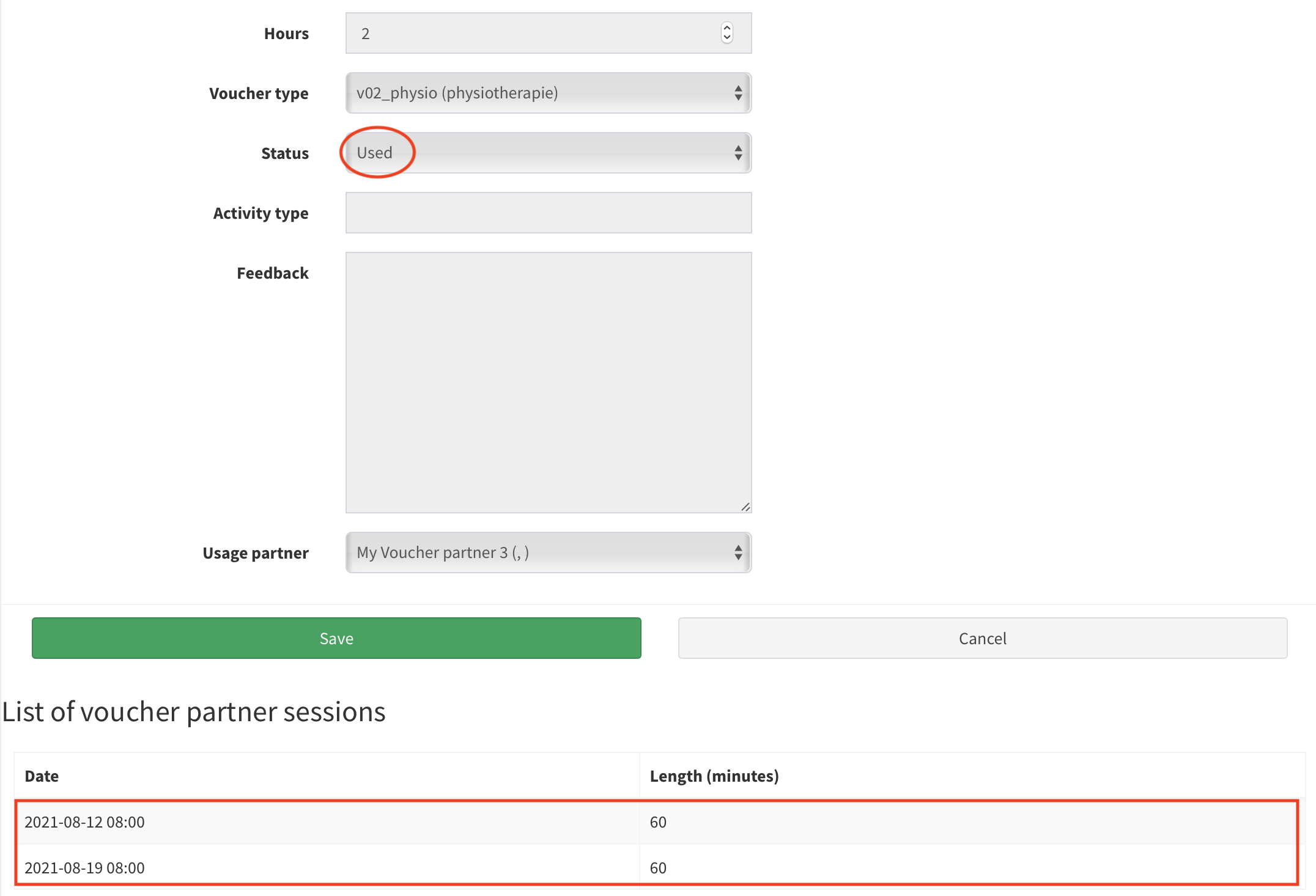
- If you repeat adding the next sessions to the list, filling step by step the voucher duration, the voucher will change the status on Used.
Print voucher#
In SMASCH each voucher can be printed and given to a patient.
- Go to Edit subject page and click Edit.
- Scroll down to Vouchers section and select the voucher you wish to print. Then click Print vouchers button. Note: There has to exist voucher mail template in order to print a voucher.
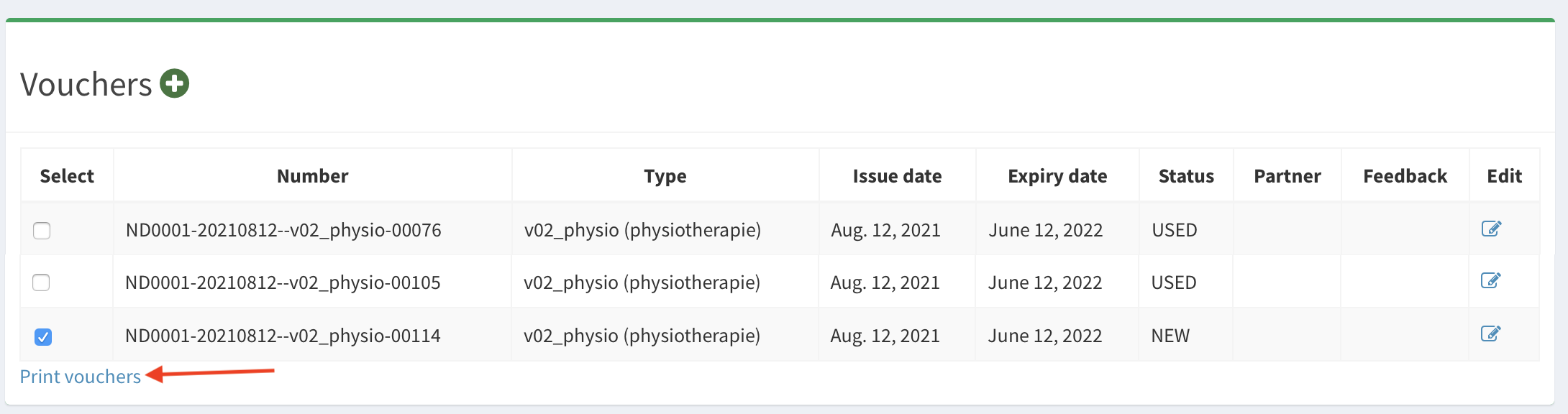
- Now the Word document is downloaded to your computer, which you can print later on.