Subject management#
The subjects are basic entities in SMASCH. Each subject describes each patient case in the study. In the left panel you can choose Subjects to see the Generic subject list in the study. Moreover, you can check here the subject’s details, add a new subject and edit or delete existing one. Due to numerous column displayed, scroll the table right/left so see the hidden columns.
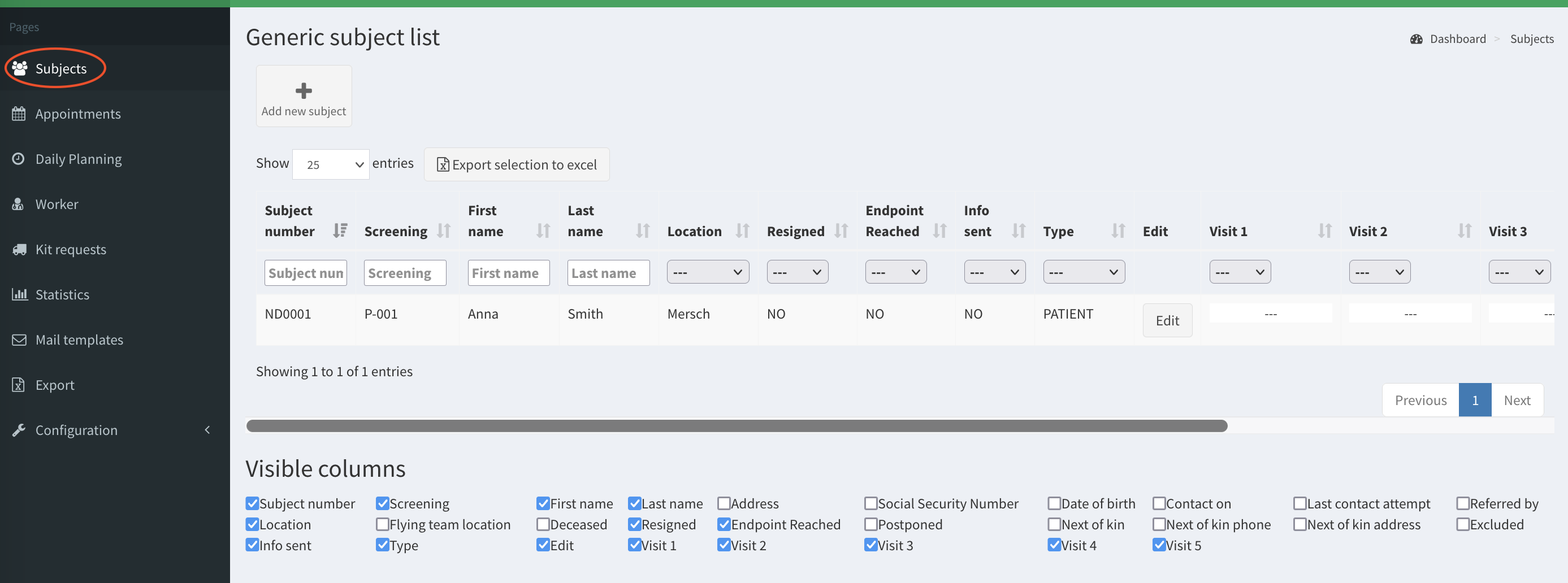 Subjects - the main view
Generic subject list#
The subjects details are displayed in the configurable list. Below the subject list, there is the section Visible columns, which manages the visibility of columns in the list. The checkboxes are corresponding with the headers of the columns and tick/untick the checkbox hides/reveals the column. The default visibility of the columns in the subject list is set up in SMASCH study configuration. In the list there are few searchable columns (e.g. Subject number or First name). You may input the particular term (e.g. subject first name) in the search filed just below the column header.
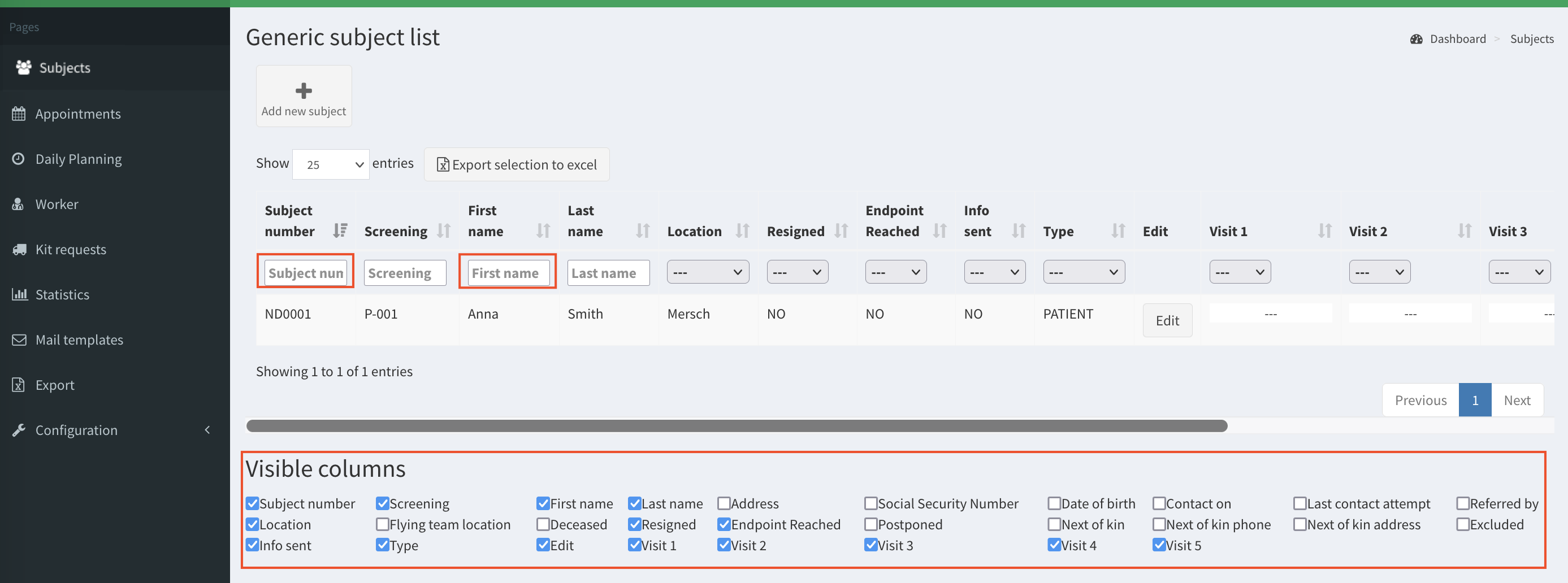 Search fields examples and columns visibility setup
Add subject#
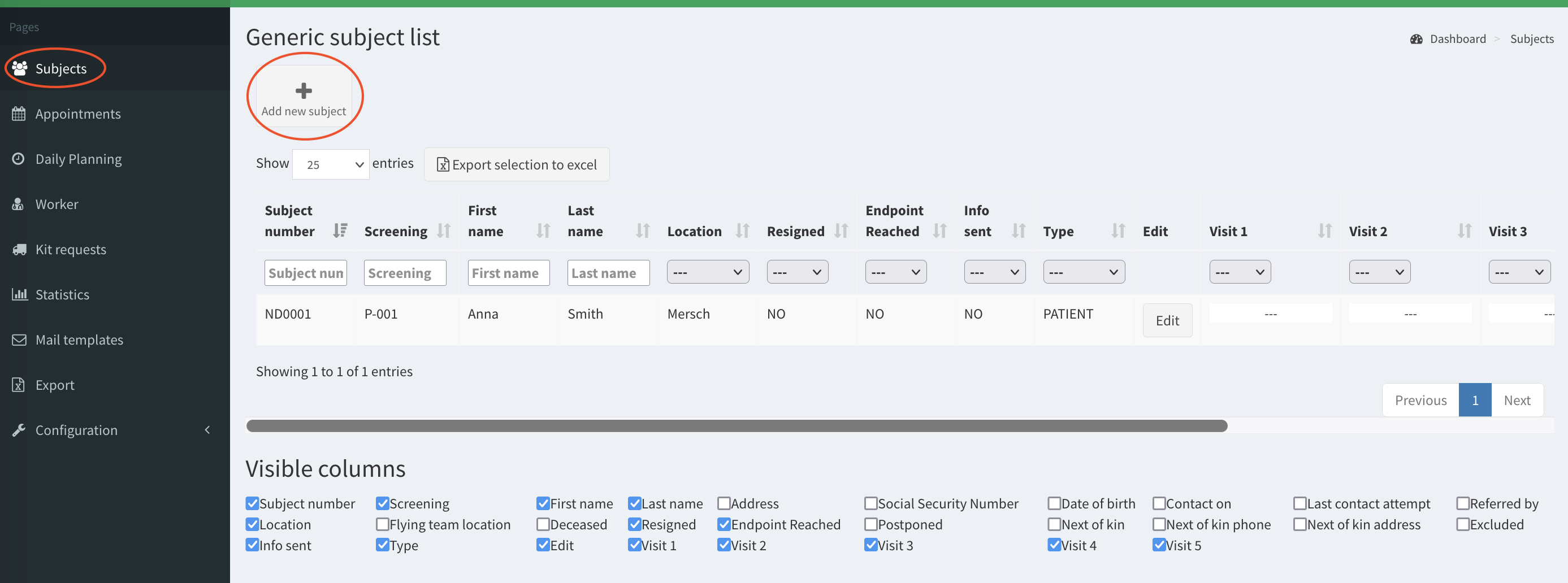
In the left panel go to Subjects. Then click Add new subject button.
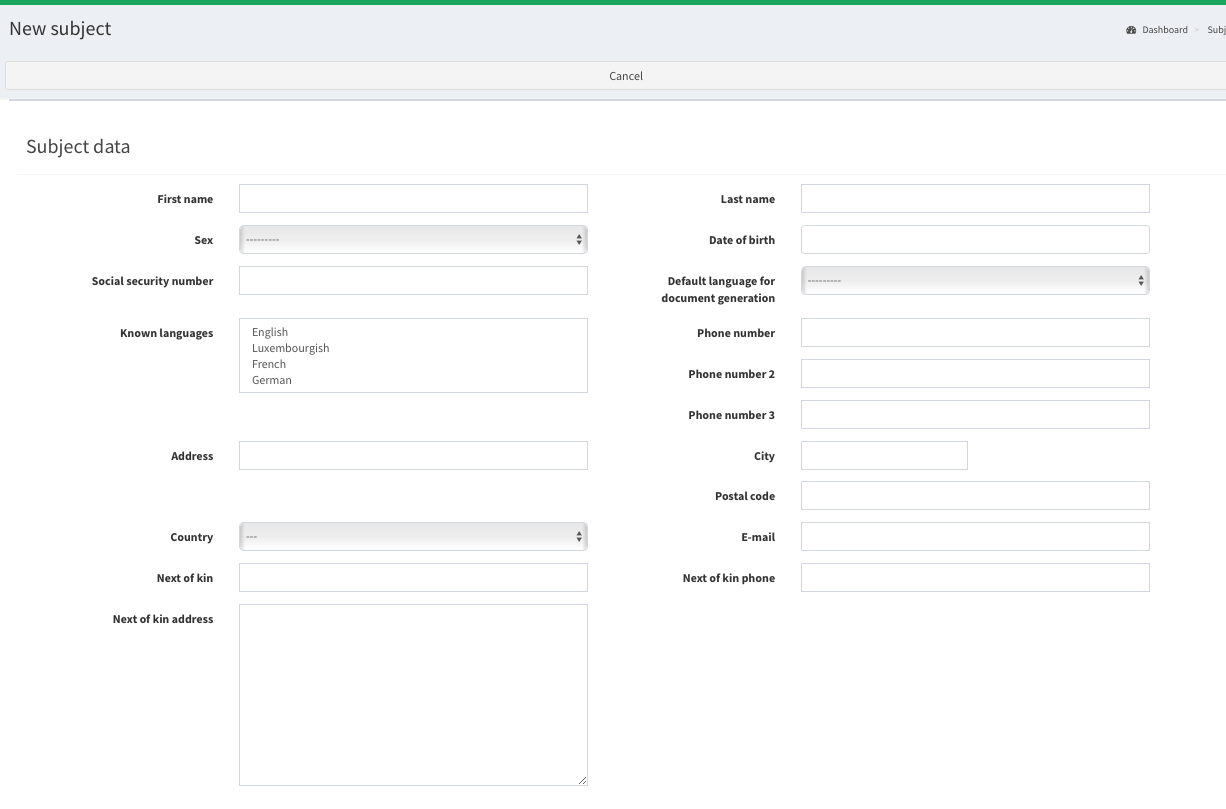
When you arrive to New subject page, you need to complete the information fields to configure the new subject. The subject data is split into personal (Subject data) and study specific (Study data). When you will be filling the form, note that:
- Date of birth format is yyyy-mm-dd (e.g. 1950-01-31).
- The mandatory fields in the form are:
- First name
- Last name
- Sex
- Country
- Type
- Default appointment location
- The value in field Subject number must be provided according to Study Subject ND Number regex defined in SMASCH configuration.
- The field Known languages is multiple selection. To choose more than one language, press the key “CTRL” and having it pressed click on the language that you want to add. Find out more in Multiple selection.
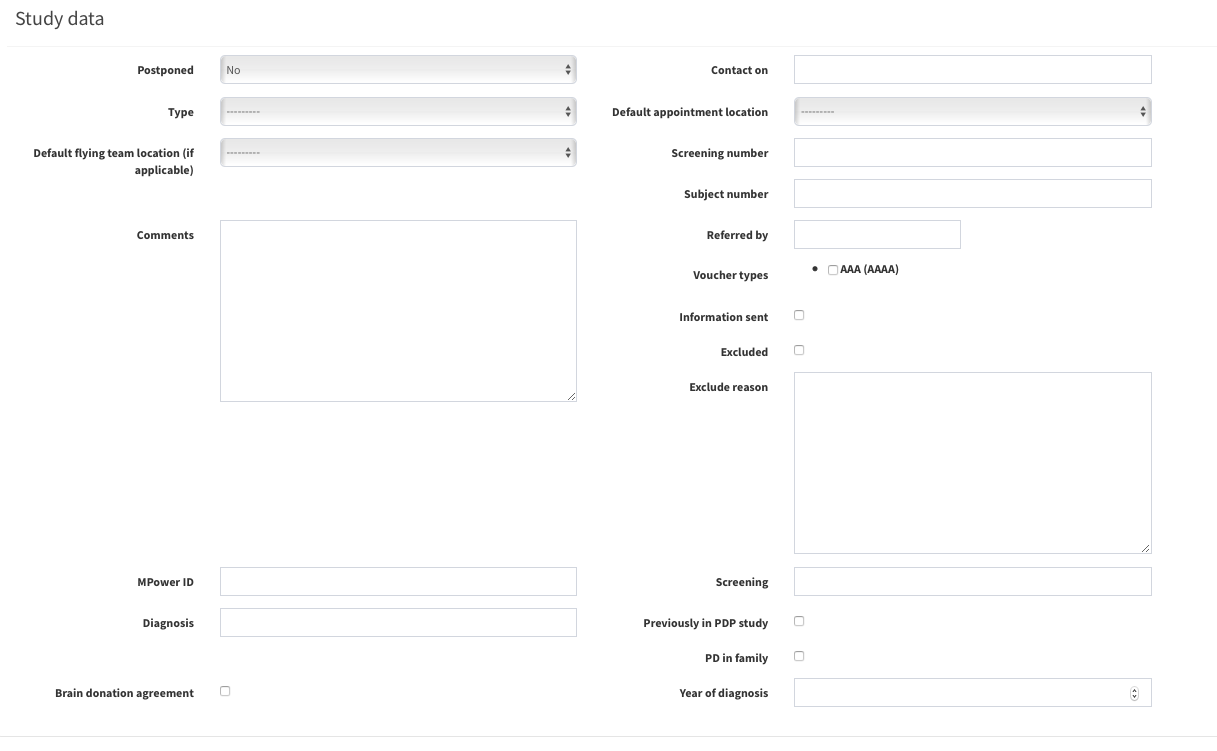
Click on the Add button at the bottom of the page to create the subject.

Edit subject’s details#
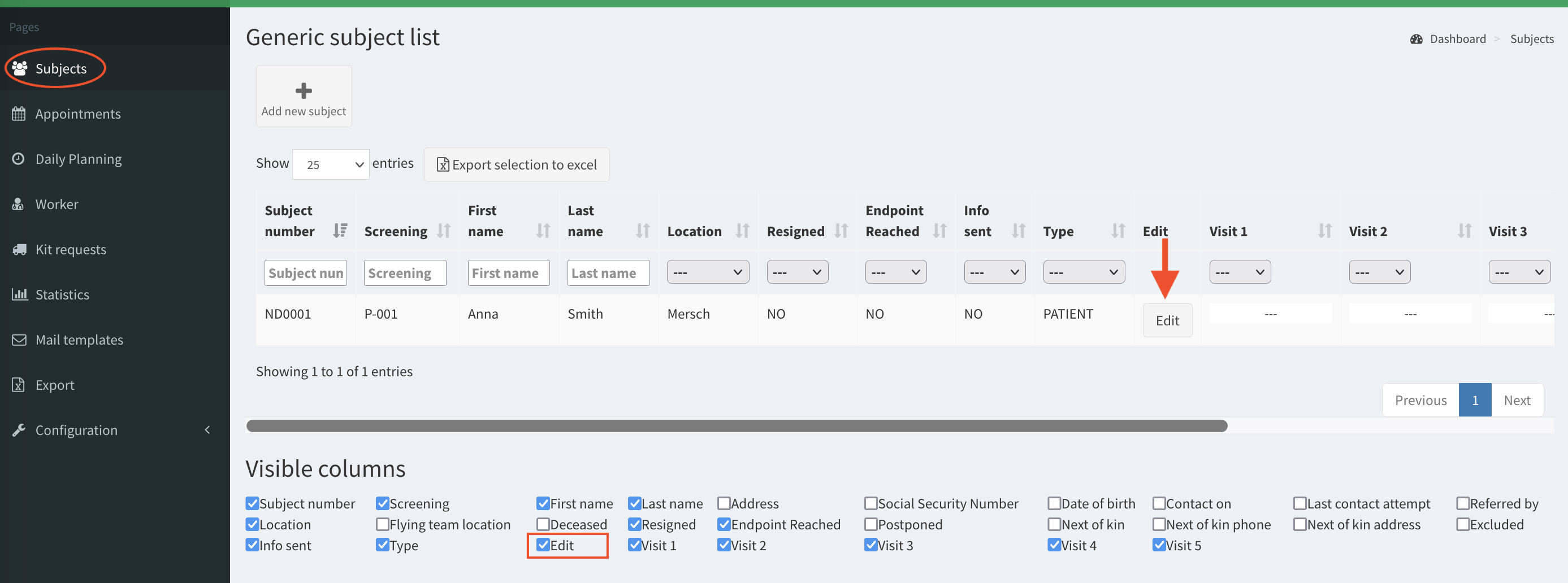
In SMASCH the subject data is editable. To start editing a patient (subject) details go to Subjects page.
Find in the list the subject you want to edit and click its Edit button. Note: In case Edit button is not visible, ensure that Edit checkbox in Visible columns is ticked.
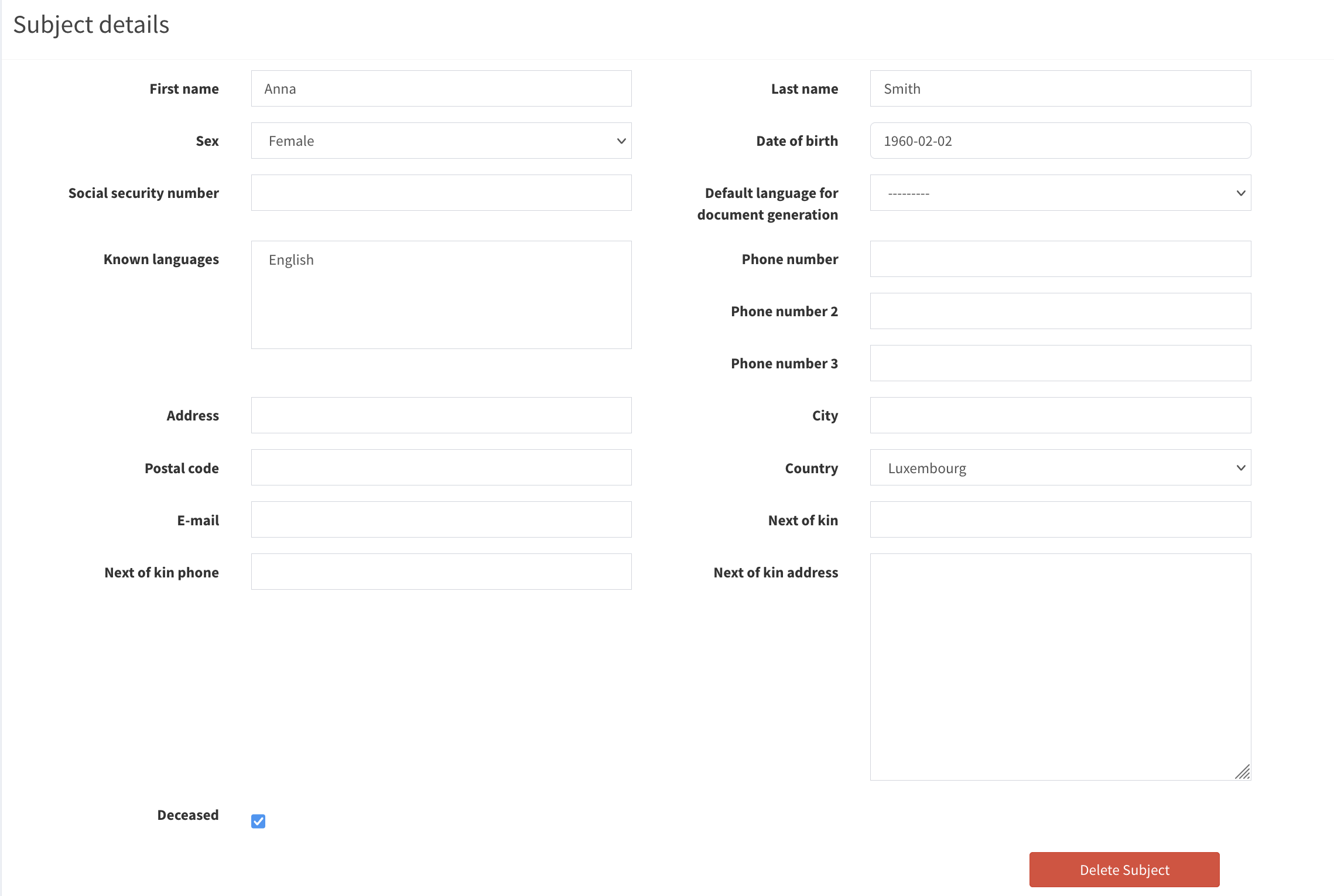
Now you see the all information about the subject. You can modify the subject data here (e.g. change the address or mark the subject as deceased) or delete the subject from the study. Note: Marking a subject deceased cannot be undone.
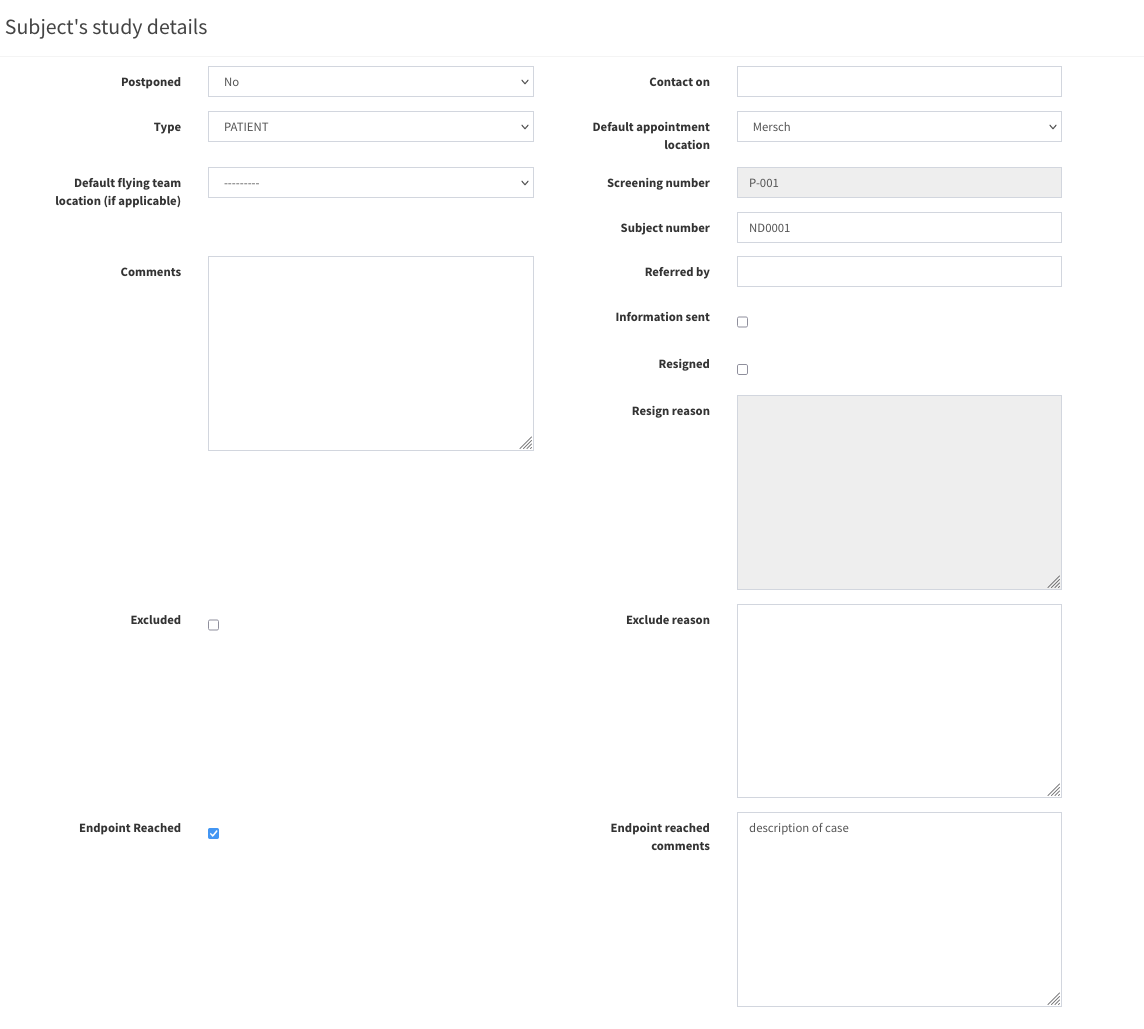
Scrolling down, there are Subject’s study details. You can change the patient’s situation in the study (Resigned, Excluded or Endpoint Reached) or add some comments there. Note: Marking a subject resigned cannot be undone.
After modifying particular information, click Save button to save the changes and go back to Subjects list. Also, you can click Save and Continue if you wish to save the changes but stay on the current page.
