Quick start#
Welcome to Scheduling System SMASCH. This section shows how to navigate through the very basic features of SMASCH. Here we will present the calendar view of the appointments, and then briefly introduce you with the management of the subjects and the appointments. When you are ready to go beyond these basics, check out the other features in the manual.
SMASCH Dashboard - calendar view of the appointments#
After successful login to SMASCH, you can see the main dashboard with the calendar view of the appointments. The calendar is displayed with the monthly view as default, and can be changed to weekly view with the buttons month/week in the top right corner of the screen. The calendar presents the appointments marked with colourful bars. The letters displayed in the particular days are the initials of workers, and indicate the worker’s availability for that day. The current day is highlighted with light yellow colour. Below the calendar, there are two buttons - Add General appointment and Add Subject appointment . Also, at the very bottom of the page, the upcoming appointments are listed.
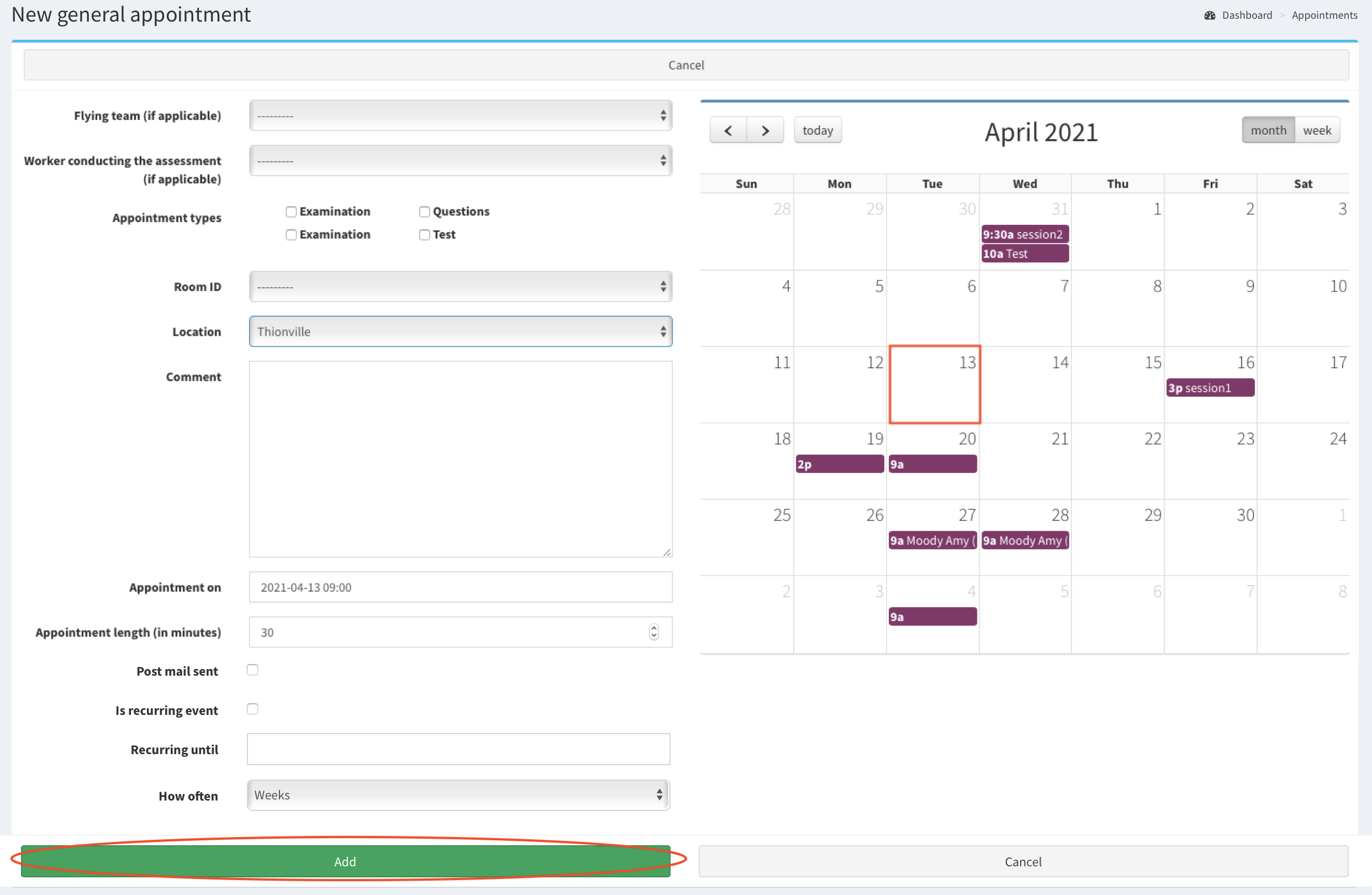
SMASCH Dashboard - the monthly view
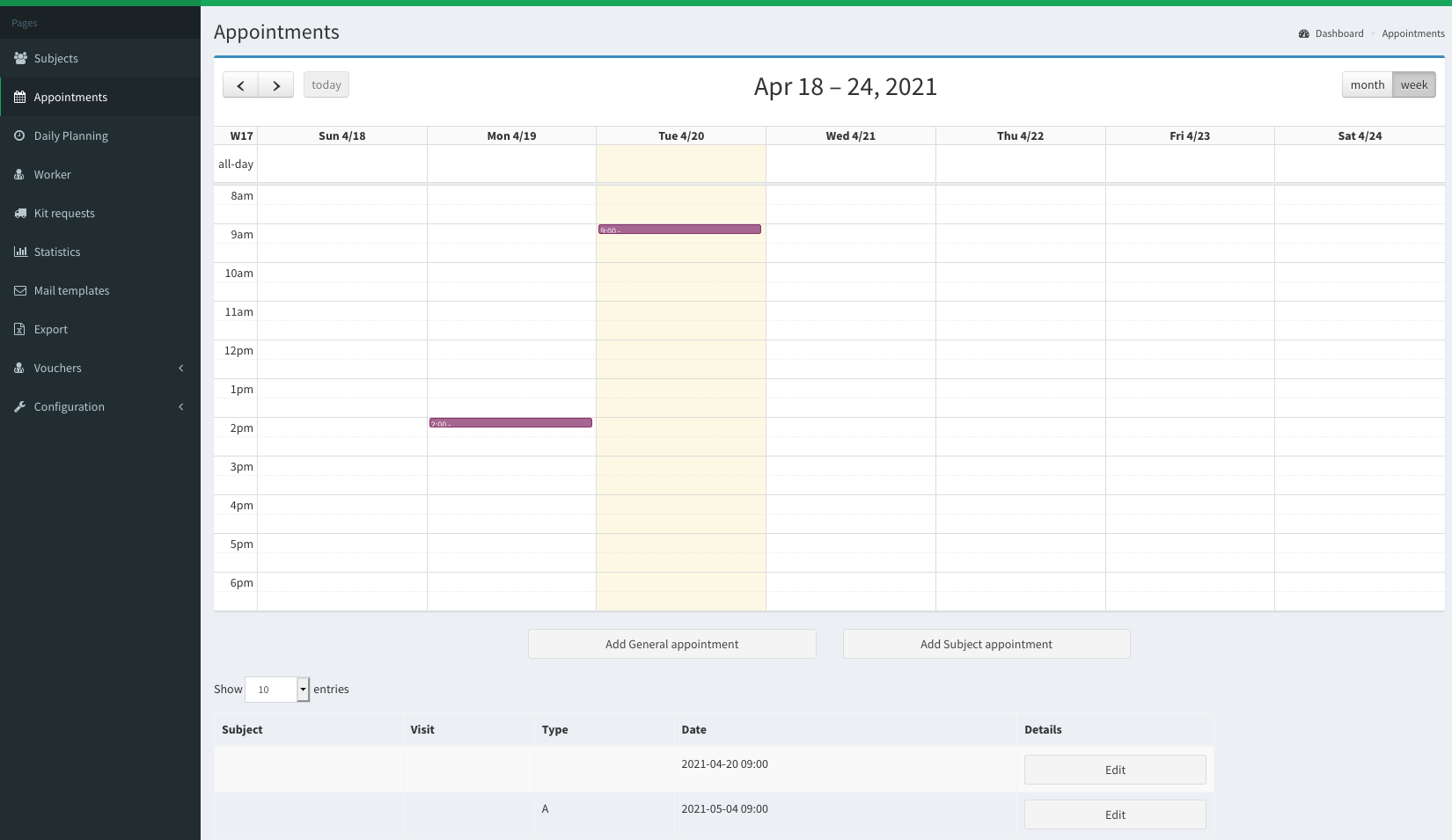 SMASCH Dashboard - the weekly view
What is an appointment, what is a visit?#
In SMASCH the basic entities are the subjects and the appointments. An appointment is one time event, displayed in the calendar view, with particular length (e.g. 10min, 60min), type (e.g. examination, test) and location. The appointment can be:
- a general appointment - with no particular subject assigned.
- an appointment in a visit - assigned to a particular subject’s visit.
The visits are fixed for the subject, the length of the visit is counted in days by providing its start and end date. During each visit the subject can have numerous appointments.
How to add general appointment?#
In the left panel go to Appointments. The click Add General appointment button.
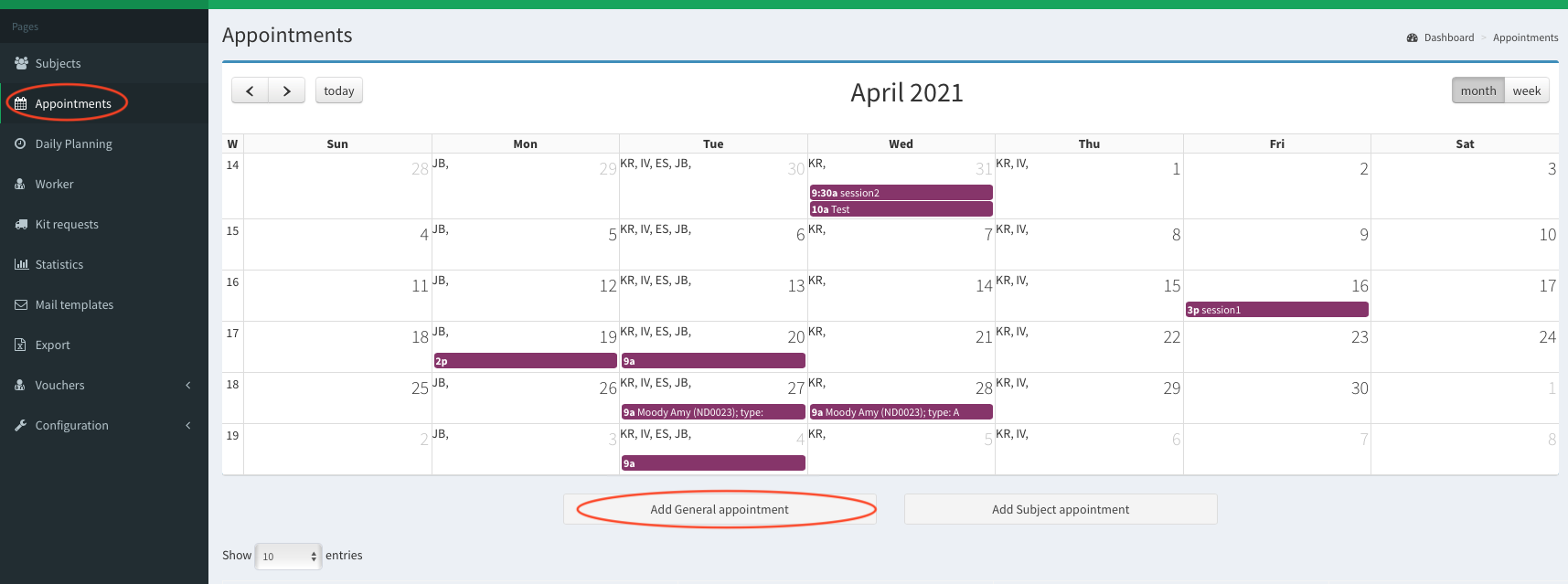 Add General appointment
New general appointment window is opened. Fill the form. To provide the date of an appointment click on the particular date in the calendar on the right side of the view. After filling the form, click Add button. Note: the field Location is mandatory.
Fill the new general appointment formThe appointment on 2021-04-13 09:00 located in Thionville has been added now to the calendar. You can see colourful bar displayed on 13th April 2021 and with appointment’s time 9a (09:00). If you hover over the appointment, the popup with details (Location and Status) will be displayed.
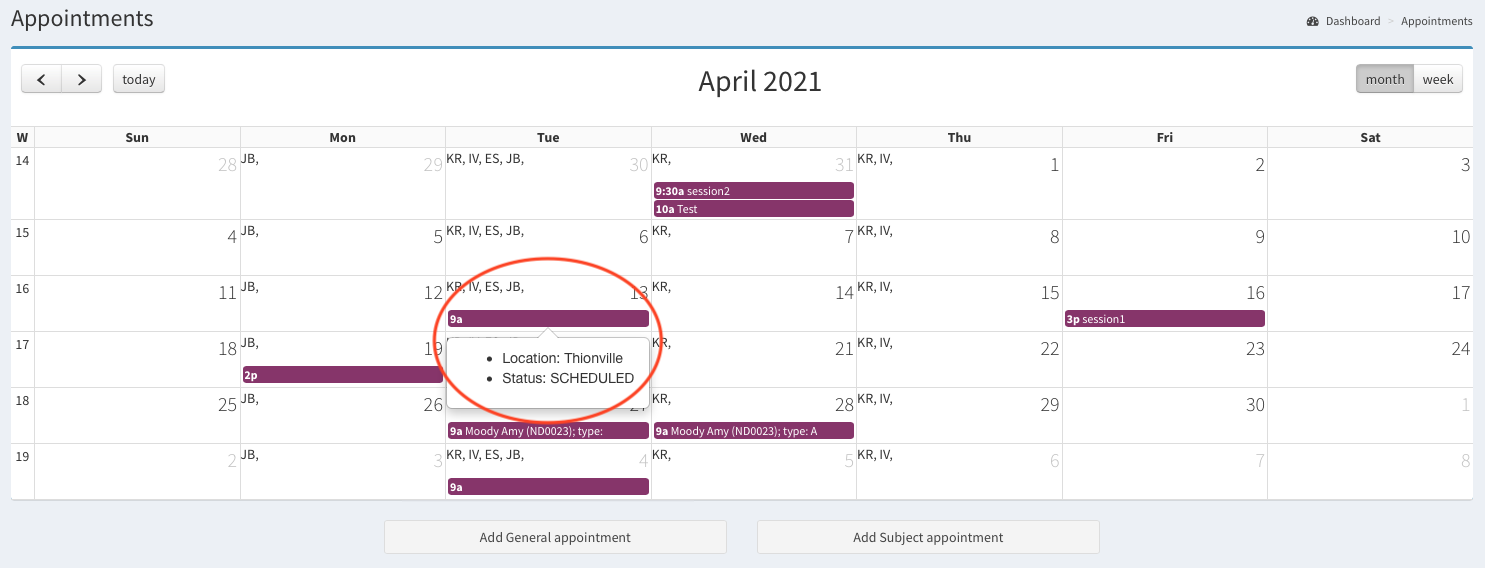 Appointment added on 2021-04-13 09:00
How to add subject?#
In the left panel go to Subjects >> Add new subject.
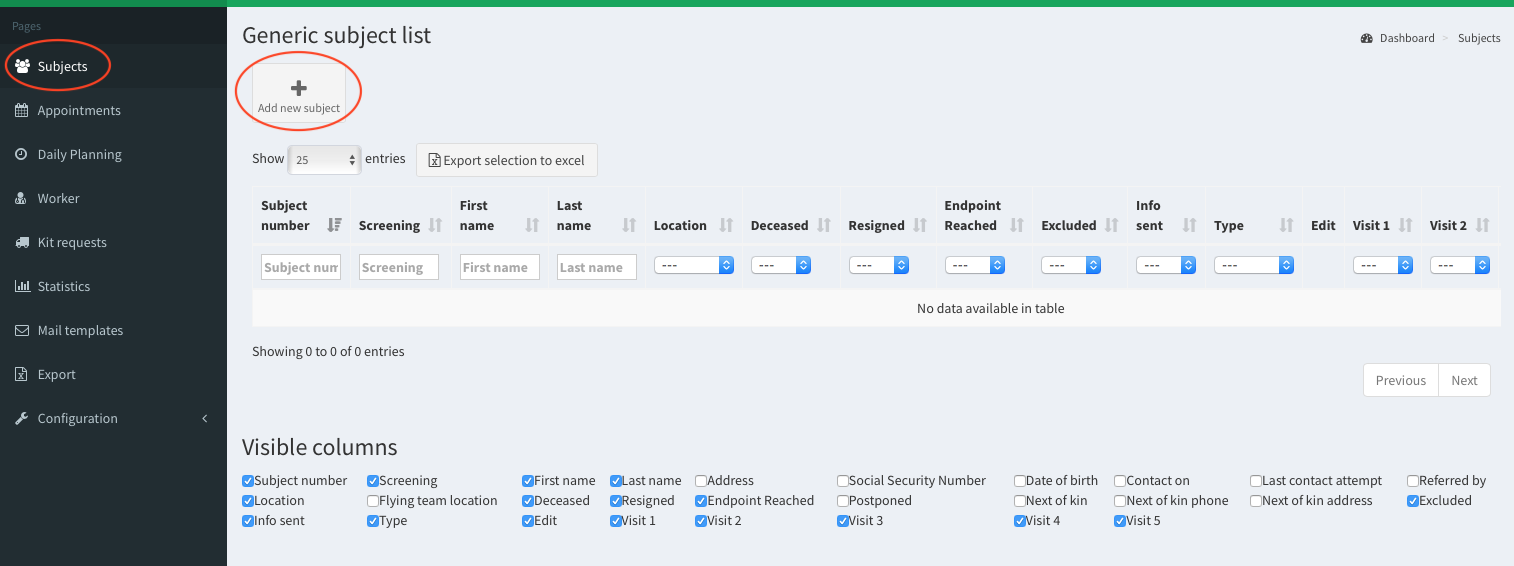 Add a new subject
Fill the Subject data and Study data forms, then click Add.
Note 1: Date of birth format is yyyy-mm-dd (1950-01-31).
Note 2: The mandatory fields are:- First name
- Last name
- Sex
- Country
- Type
- Default appointment location
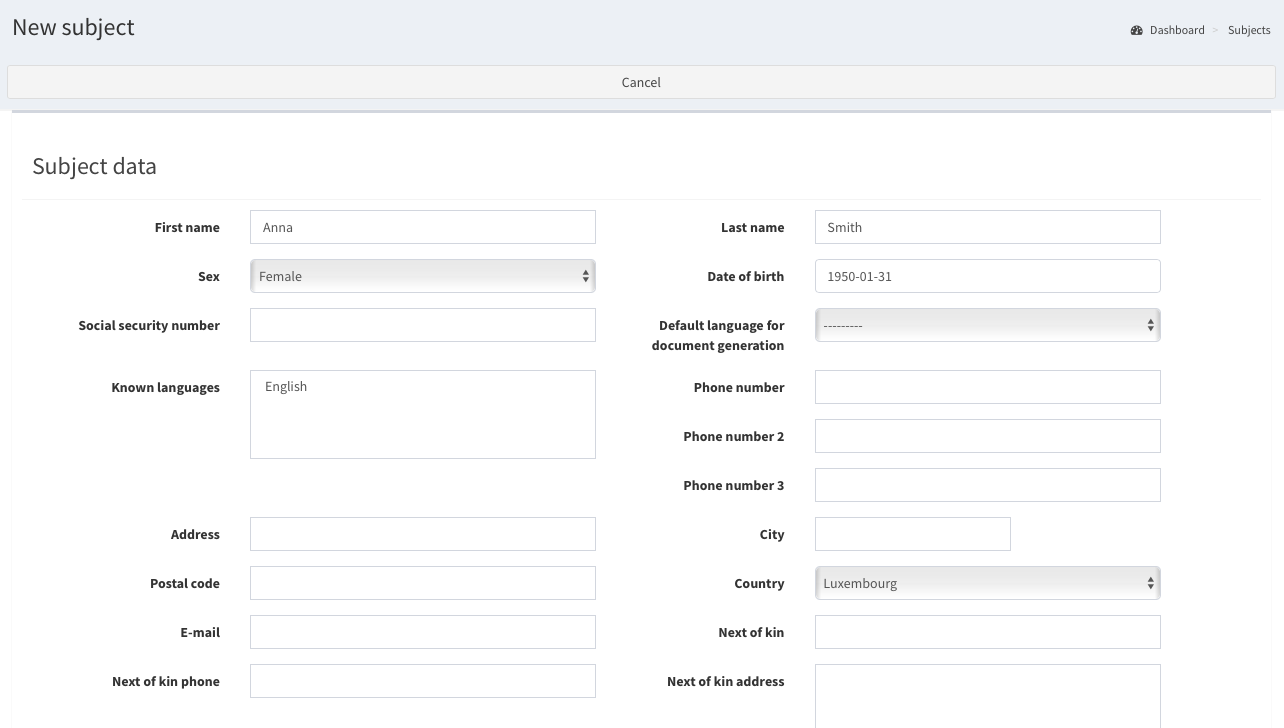
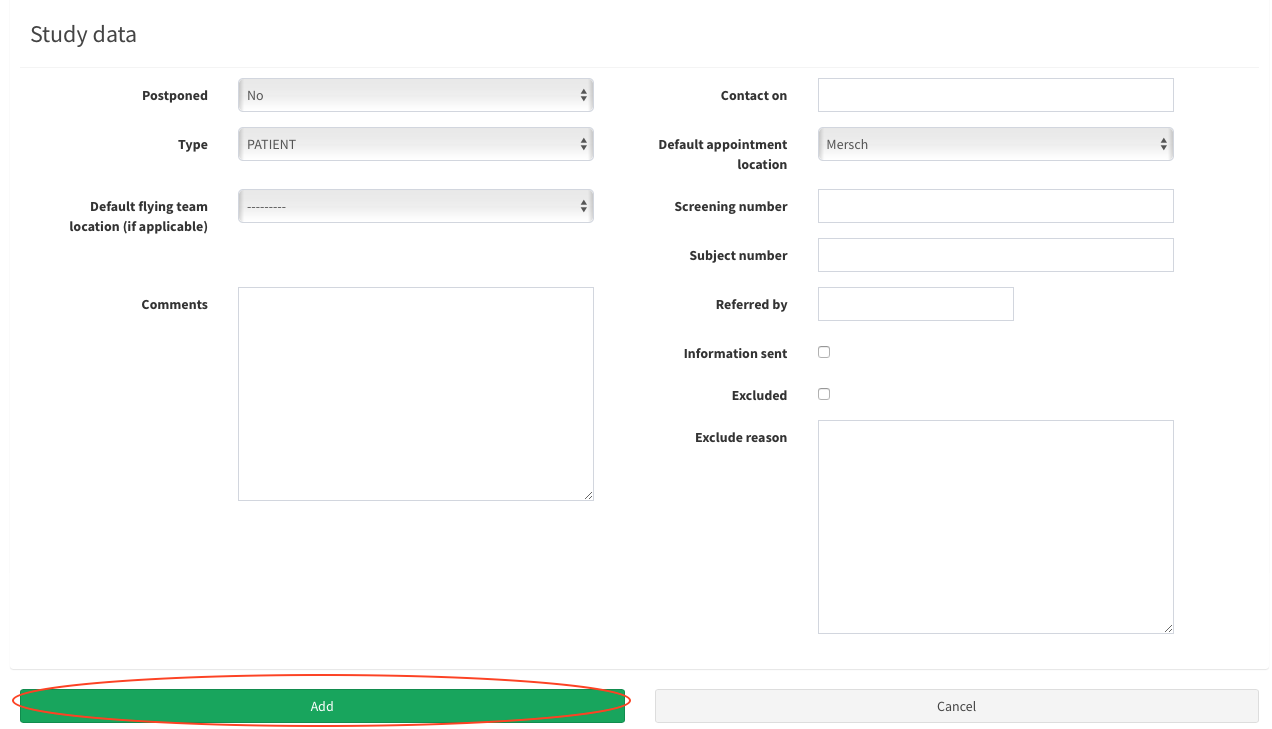 Fill the new subject form
You successfully added a new subject. Now you can see the subject’s details and modify them.
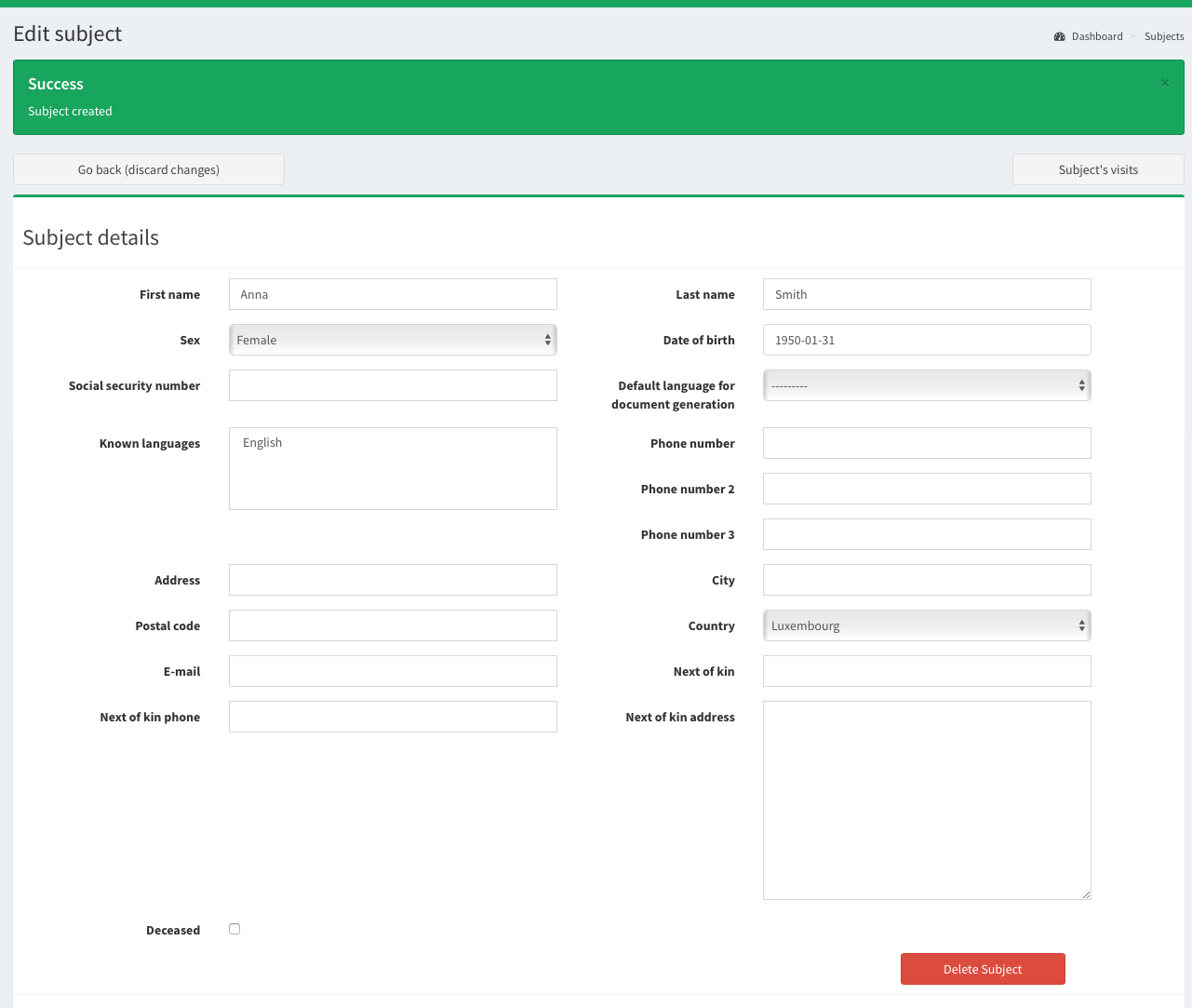 Subject added successfully